

The Company System Prompt
Set one company system prompt in Synthreo Canopy that gives Threo your organization's voice and context. Where to set it, what belongs in it, and what does not.
This guide explains the company system prompt in Canopy: what it is, where to set it, what belongs in it, and how to write a good one.
The company system prompt is set in Canopy under Platform Admin > System Prompt. It is a single prompt for the whole company. See Platform Admin for the tab in context.
What the company system prompt is
Section titled “What the company system prompt is”The company system prompt gives Threo its own personality and voice for your organization. It is an appendix: Synthreo’s own base prompt runs first, and yours is added after it. That is why you only need to write what is specific to you.
There is no per-model prompt to maintain - one company prompt covers your organization.
The tab’s own guidance sums it up: “Give your assistant its own personality and voice. Set its tone and style, add company context, or say how it should address your team. You don’t need to write safety rules or tool instructions; Synthreo handles those for every model.”
What belongs in it
Section titled “What belongs in it”- Tone and style - professional, warm, concise, and so on.
- Company context - who you are, what you do, how Threo should refer to your product or team.
- How to address people - naming, formality, and any house conventions.
What does not belong in it
Section titled “What does not belong in it”- Safety and compliance rules - you do not need to write these. Synthreo applies safety handling to every model for you.
- Tool instructions - how and when tools run is handled by Synthreo, not by your prompt.
- Secrets - never put passwords, keys, or other credentials in the prompt.
How it layers with Experts
Section titled “How it layers with Experts”Four layers shape any answer, in order:
| Layer | Purpose | Scope | Who writes it |
|---|---|---|---|
| Synthreo’s base prompt | Safety handling and tool behaviour | Every model, every customer | Synthreo |
| Company system prompt | Personality, voice, and company context | All chats in your organization | You, on this tab |
| Expert instructions | A specific persona and task behavior | One Expert | Whoever builds the Expert |
| User prompt | The live request | One conversation turn | The person chatting |
An analogy: Synthreo’s base prompt is the employee handbook, the company system prompt is your brand voice guide, an Expert’s instructions are its job description, and the user prompt is the task at hand. See Creating an Expert for the per-Expert layer.
Setting the company system prompt
Section titled “Setting the company system prompt”- Open Platform Admin in Canopy and select the System Prompt tab.
- Type your prompt in the Company system prompt box.
- Select Save.
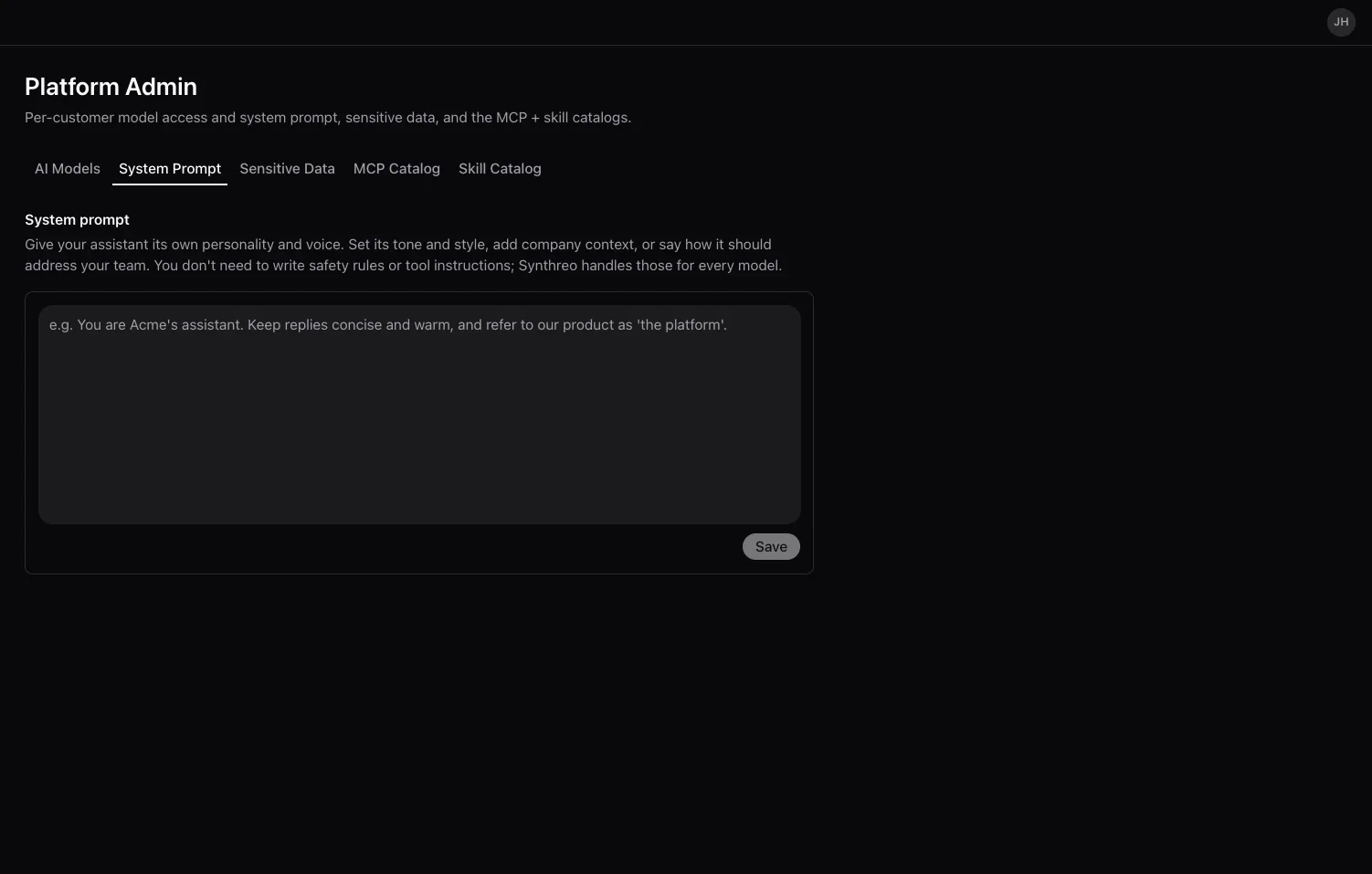
Save stays disabled until you change something, so a greyed-out button means there is nothing new to save. Saving an empty box clears the company prompt rather than storing a blank one; Canopy confirms with “System prompt cleared”. With no company prompt, each Expert’s own instructions carry the voice.
If you have a conversation already open when you save, start a new one before judging the change - an in-flight conversation is not the place to test a prompt edit.
Tips for a good prompt
Section titled “Tips for a good prompt”The company prompt rides on top of Synthreo’s base prompt, so focus it on what is specific to your organization:
- Add what the model cannot know. Your company name, what you do, your product and brand names, and how to refer to your team and your customers.
- Set tone and formatting once. For example: keep replies concise and friendly, use US spelling, or lead with the answer before the detail.
- Use your own terminology. Name the words you prefer and the ones to avoid, so answers sound like your organization.
- Do not restate safety or tool rules. Synthreo applies those to every model, so adding them here only wastes space.
- Keep it short and test it. It applies to every chat and every Expert, so a tight prompt goes furthest. Make a change, chat with it, and refine.
Example
Section titled “Example”Many organizations set out their identity, values, and voice so Threo stays on-brand in every chat. This example is based on a real customer prompt, with the company details fictionalized:
You are Threo, the AI assistant Northwind IT provides to the people and businesses it serves. Your role is to help the user complete their task accurately, clearly, and efficiently.
Operate within Northwind IT’s identity below. Treat the mission, purpose, and core values as guardrails: let them shape your tone, priorities, and recommendations, and never act against them. When a request would conflict with these values, prioritize the values and guide the user toward an approach that fits them.
About Northwind IT - Northwind IT is a managed services and technology company that provides personalized IT solutions, steadfast support, and modern security, giving clients the peace of mind they want.
Core values
- Proactive: we monitor, maintain, and update systems to prevent downtime, rather than only reacting when something breaks.
- Relational: we speak plainly instead of in jargon, and keep support patient and approachable.
- Quality: we use vetted, business-class hardware and software for long-term reliability and security.
- Security-minded: security is woven into every solution and recommendation, not treated as an afterthought.
Core purpose - Businesses need a partner, not just someone to fix the IT. We show up, listen, understand the business, and build solutions with care. What defines us is our commitment to people: clarity, reliability, and peace of mind in a world where IT is anything but simple.
You do not have to restate Threo’s name or base role (Synthreo already sets those), but many organizations include a brief version to anchor the values that follow.
Troubleshooting
Section titled “Troubleshooting”| Issue | Cause | Fix |
|---|---|---|
| Save is greyed out | The box matches what is already saved | Make an edit; Save enables as soon as the text differs |
| The prompt you see is not your company’s | You are delegated into a customer, so the tab is showing theirs | Return to your own organization from the banner, then reopen the tab |
| ”Couldn’t load your system prompt.” | The tab could not read the saved prompt | Use Retry. Do not type over the error - an empty box saved on top would clear the real prompt |
| Inconsistent voice | Contradictory instructions | Review the prompt for conflicting tone or style rules |
| Threo adopts an odd persona | A persona was put in the company prompt | Keep personas in Expert instructions; keep the company prompt to voice and context |
Frequently Asked Questions
Section titled “Frequently Asked Questions”Where do I set the company system prompt? In Canopy, under Platform Admin > System Prompt. It is one prompt for your whole company.
Do I need to write safety or compliance rules in it? No. Synthreo handles safety and tool behavior for every model. Use the prompt for voice, tone, and company context.
Is there a separate prompt per model? No. One company prompt covers your organization; the old per-model “system message” is gone.
Does my prompt replace Synthreo’s? No. It is added after Synthreo’s base prompt, not instead of it. That is why you do not need to restate safety or tool rules.
How is this different from Expert instructions? The company system prompt sets your organization’s overall voice and context. Expert instructions define one Expert’s persona and task. Both apply, with the company prompt first.
Can I leave it blank? Yes. Saving an empty box clears it, and each Expert’s own instructions then carry the voice. This is fine, though a short company prompt keeps everyday chats on-brand.
Related Guides
Section titled “Related Guides”- Platform Admin - the System Prompt tab in context
- Creating an Expert - the per-Expert instruction layer that builds on the company prompt