

Welcome to Pylon
Welcome to Pylon - Synthreo's no-code AI agent platform for IT service providers and MSPs. Start here to learn how to build, configure, and deploy intelligent automation workflows.
What Is Pylon?
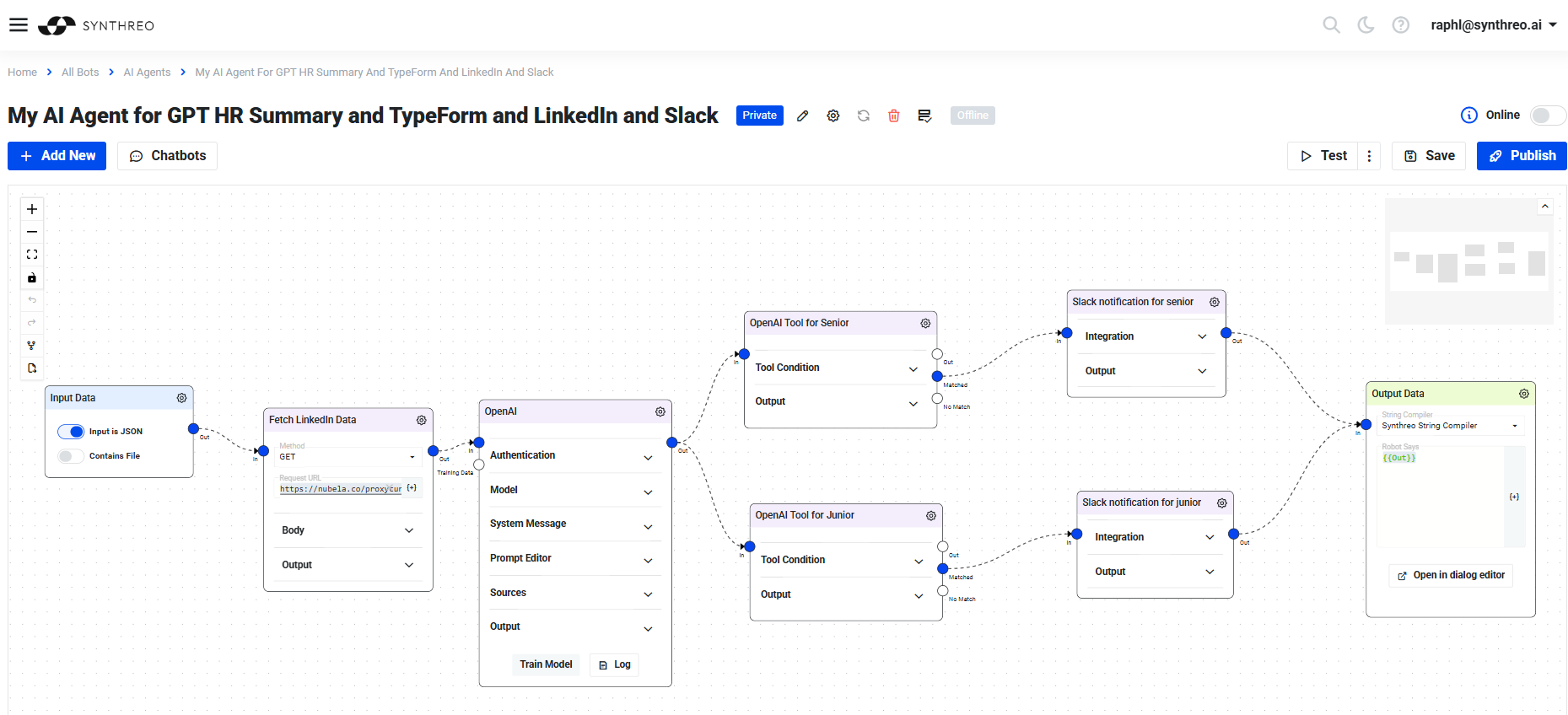
Section titled “What Is Pylon?”Pylon is Synthreo’s no-code AI platform for designing, configuring, and deploying intelligent automation workflows. It lets teams build AI agents that automate business processes, answer questions from company knowledge bases, integrate with external systems, and deliver results through chat interfaces, email, APIs, or scheduled runs - without requiring specialized programming skills.
At its core, Pylon uses a visual workflow canvas where you place and connect nodes. Each node performs a specific function - receiving input, calling an AI model, transforming data, querying a database, sending an email, and so on. Connecting nodes in sequence defines how data flows through the agent.
Who Uses Pylon?
Section titled “Who Uses Pylon?”Pylon is designed for a broad range of users inside IT service providers, MSPs, and enterprise teams:
- Business analysts and operations staff who need to automate repetitive processes without writing code
- IT administrators who configure agents and integrations for their organization
- Developers who want to extend workflows with custom Python scripts or REST API calls
- Tenant administrators who manage the users, credentials, and deployment settings that underpin every agent
No coding background is required for most workflows. The platform handles authentication, model orchestration, data storage, and deployment infrastructure so you can focus on workflow logic.
What Can You Build?
Section titled “What Can You Build?”Pylon supports a wide range of automation and AI use cases:
- Conversational AI agents - chat-facing agents powered by LLMs that answer questions, summarize documents, route requests, or collect information through structured forms
- RAG-powered knowledge assistants - agents trained on your company documents, FAQs, policies, and procedures that give accurate, grounded answers from your own content
- Workflow automations - multi-step processes that receive data, transform it, call external APIs, write to databases, and send notifications
- Function-calling agents - agents that use OpenAI tool-calling or the unified LLM node to dynamically route between multiple actions based on user intent
- Scheduled jobs - agents that run on a timer and process data, send reports, or trigger downstream systems
- File processing pipelines - agents that accept uploaded files, extract text, run OCR or AI analysis, and return structured results
- Screen recording and image intake workflows - agents that accept screen captures or image uploads through Form Builder fields and process them in the flow
How Pylon Relates to ThreoAI
Section titled “How Pylon Relates to ThreoAI”Pylon and ThreoAI are complementary parts of the Synthreo platform:
- Pylon is where you create and configure AI agents - designing the workflow logic, training RAG knowledge bases, defining forms, and testing behavior.
- ThreoAI is the end-user chat interface where deployed agents are presented to users. When a user sends a message or submits a form in ThreoAI, the request reaches the Pylon agent, which executes its workflow and returns a response.
An agent built in Pylon can be published as a Custom GPT in ThreoAI, making it accessible to your users without them needing to interact with Pylon at all.
Key Capabilities
Section titled “Key Capabilities”Visual Workflow Canvas
Section titled “Visual Workflow Canvas”The canvas is a diagram-based interface where nodes are placed and connected with directional edges. The canvas supports:
- Adding nodes from the node palette
- Connecting nodes by drawing edges between them
- Configuring each node by clicking its settings icon
- Duplicating, deleting, and repositioning nodes
- Adding Annotation nodes as inline documentation that do not affect execution
Node Library
Section titled “Node Library”Pylon provides a comprehensive set of node types organized into categories:
- Inputs and Outputs - Input Data, Output Data, File Loader, Input DCS, Save to File
- LLM nodes - the unified LLM node (recommended for all new workflows) plus legacy OpenAI GPT and Azure OpenAI nodes
- Transformations - Convert From JSON, Convert To JSON, Convert File to Base64, Convert Base64 to File, File to Text, String Ops, Transform
- Online Operations - HTTP Client, Send Email, Send SMS, Web Search, URL Scraper, Email Receiver
- Data Flow - Information Search, Update Database, Value Exists
- Utilities - Custom Script, Annotation, Regex, Wait, Value Exists
- NLP - Sentiment Analysis, Feature Extraction, Similarity
- Machine Learning - Deep Learning, Prepared Model
- Integrations - CRUD Integration, Office 365, LangChain, Replicate
Variable System
Section titled “Variable System”Nodes pass data to each other through a variable system. Variables from any node are referenced in downstream nodes using Mustache-style double-brace syntax:
{{userSays}}- the user’s message from the Input Data node (shorthand){{Out.nodeId}}- the full output object of a node identified by its output column name{{Out.nodeId.fieldName}}- a specific field within that output object{{{Out.nodeId.fieldName}}}- triple braces to render HTML or unescaped content
RAG (Retrieval-Augmented Generation)
Section titled “RAG (Retrieval-Augmented Generation)”Pylon’s LLM nodes support RAG training, which indexes your documents and knowledge base content into a vector store. When a user asks a question, the node retrieves the most relevant chunks and passes them as context to the language model, grounding the response in your actual content.
Form Builder
Section titled “Form Builder”Each DAG can have a structured input form attached to it. Forms support text fields, dropdowns, file uploads, image uploads, date pickers, checkboxes, and screen recordings. When a user submits a form in ThreoAI, the field values arrive in the DAG alongside or instead of a free-text message. See Form Builder.
Data Studio
Section titled “Data Studio”Data Studio is Pylon’s built-in database and data management layer. You can create databases, define tables and columns, import data, and configure dynamic GUI editors for that data. Agents can read from and write to Data Studio tables, making it a practical way to store state, lookup data, or expose structured information to workflows.
The node canvas at a glance
Section titled “The node canvas at a glance”The canvas experience has several main areas:
- Dashboard - the landing page showing your agents, quick statistics, and recent activity. From here you can create a new agent or open an existing one.
- AI Agents list - the full list of agents in your organization, with status indicators (Online, Offline, Draft) and quick actions for each.
- Workflow canvas - the visual diagram editor for a specific agent. The toolbar at the top of the canvas provides controls for saving, testing, deploying, and accessing Form Builder and other agent settings.
- Test panel - a panel that opens when you run a test execution of the agent. It shows the Debugger tab (per-node input/output inspection) and test output.
- Data Studio - accessible from the main navigation. Manages databases, tables, and data for your organization.
- Settings and credentials - managed through the profile and tenant administration areas. Credentials (API keys, SMTP settings, OAuth tokens) are stored centrally and attached to nodes that need them.
Getting Started Path
Section titled “Getting Started Path”If you are new to Pylon, follow this sequence:
- Read the User Manual - the Pylon User Manual covers the workspace, node types, variable syntax, and how flows execute. Start there for a complete picture of how Pylon works.
- Build your first DAG - in the left navigation under Build, select DAGs, then Create DAG, and add a basic Input Data - LLM - Output Data chain to see a working flow. Nodes live on the DAG canvas; see DAGs in Pylon.
- Add a Form - use Form Builder to attach structured input fields to your agent when you need more than free-text input.
- Train a knowledge base - follow the RAG Best Practices guide to upload documents and configure retrieval settings for your agent’s LLM node.
- Test and debug - use the Pylon Debugger to inspect per-node outputs and trace any issues in your workflow.
- Deploy - publish the DAG, then verify it in ThreoAI or your target integration.
Autonomous Agents are a separate surface in the same workspace - you give one a goal, a model, tools and skills rather than wiring nodes. Start with Create your first Agent.
Contact Us
Section titled “Contact Us”This documentation and the Synthreo platform it covers are continuously improved and updated. For the latest information on changes, see the documentation updates section or send a message from the Synthreo console.
To report a bug from the Pylon app, use profile (top-right) → Report a bug. The dialog is bug-only, so send feature ideas and general product feedback to your administrator or account contact instead. ThreoAI names the row the same way; Canopy’s still reads Submit Feedback and opens the same form - see Report a bug or send feedback.
Explore the Full Synthreo Platform
Section titled “Explore the Full Synthreo Platform”Pylon works alongside the other Synthreo tools - use the links below to jump to their documentation:
- ThreoAI Overview - secure AI chat platform with Custom GPTs and AI Agents
- Welcome to ThreoAI - first steps with the ThreoAI interface
- Canopy Overview - manage users, customers, and application permissions
- Builder API Introduction - integrate your agents into your own applications