

AI Model Comparison in ThreoAI
Use ThreoAI Model Comparison to send one prompt to up to four AI models side by side - open it from the model picker, add panels, and deep-link a pairing.
Overview
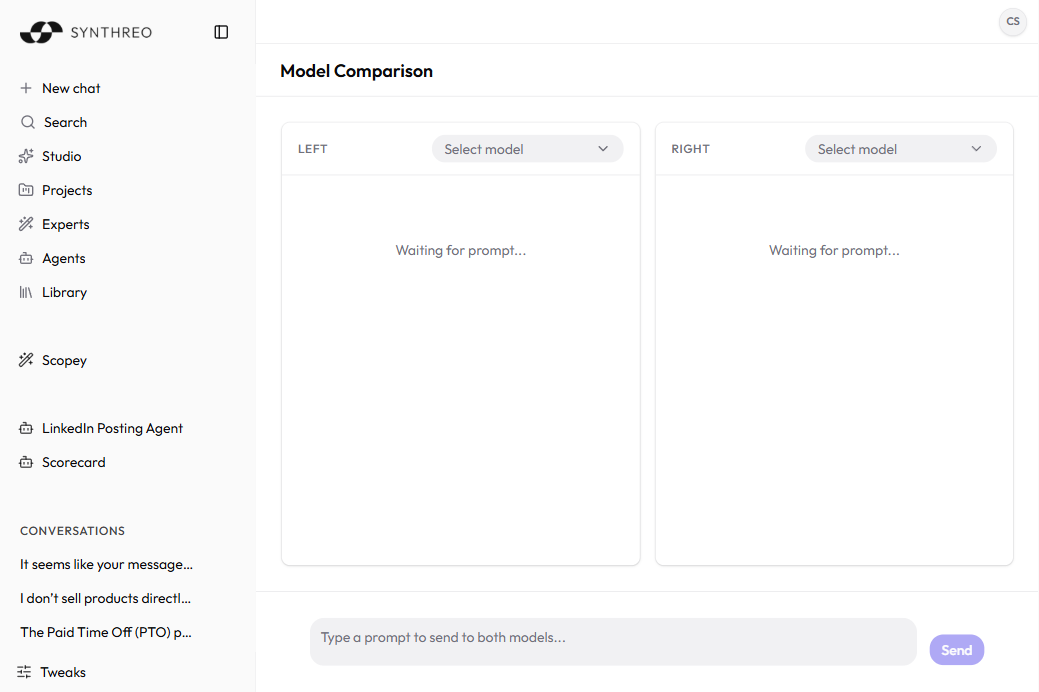
Section titled “Overview”Model Comparison is a built-in ThreoAI feature that sends one message to two different models at the same time and shows their answers side by side, with room to add a third and a fourth. Use it to judge response quality, compare reasoning styles, see how each model reads an Expert’s instructions, or settle on the right model for a task before you commit to it.
Instead of jumping between separate conversations and trying to remember which answer came from where, Model Comparison lays the responses out on one screen so you can weigh them together as they stream in.
Opening Model Comparison
Section titled “Opening Model Comparison”There are two ways in:
- From the model picker: open the model selector in the composer and select Compare models, pinned at the top of the picker above the model list. This works while a chat is still empty - the home chat, or a new chat in a Project, an Expert or an Agent. Once a conversation has messages in it the model selector is disabled and its menu will not open, so this route is not available from a chat already under way.
- By URL: go to the
/comparisonroute in ThreoAI. This is the route to use from a conversation that already has messages, since the picker is locked there.
Both open the same page, headed Model Comparison: side-by-side model panels with a shared composer at the bottom.
Deep-linking a comparison
Section titled “Deep-linking a comparison”The /comparison route accepts URL parameters so you can land on a specific set of models, or reopen the conversations a comparison produced. Add them as a query string:
/comparison?leftModel=<model>&rightModel=<model>/comparison?left=<conversationId>&right=<conversationId>/comparison?model3=<model>&model4=<model>leftModelandrightModelset the models in the first two panels. Each accepts a model id, or the model’s name as it is written in the picker (case-insensitive), so?leftModel=gpt-4oresolves.leftandrightname conversations to reload into those panels, so a shared link reopens the actual exchange rather than an empty pair.model3/model4andconv3/conv4do the same for the third and fourth panels, and supplying either one is what makes that panel appear.
This is handy for a bookmark or a shared link that always opens the same models ready to compare.
How it works
Section titled “How it works”Each panel has its own model selector above its own response area, and every panel streams independently.
Picking models
Section titled “Picking models”The first two panels arrive pre-filled - the left with your profile default model and the right with a different one - so you can send a comparison right away without setting them up first. To change either side, open that panel’s model selector and choose.
To compare more than two at once, select Add model in the page header. It adds the next panel seeded with a model none of the open panels is using, up to a ceiling of four. The button disappears at four and is disabled while a prompt is in flight.
You can close a panel again with its close control. Closing an added panel leaves the rest of the comparison open. Closing one of the first two panels is only offered when exactly two are open, and it takes you to the surviving panel’s conversation as a normal single-model chat. Close controls are disabled while any panel is still answering.
The models on offer are the same ones available across ThreoAI, configured by your organization’s administrator in Canopy. If a model you need is missing, ask your administrator to enable it.
Running a comparison
Section titled “Running a comparison”- Pick your models.
- Type your prompt in the shared composer at the bottom. The exact same text goes to every open panel.
- Press Enter. All panels get the identical prompt at once and start answering.
- The responses stream side by side.
You can keep going with follow-ups, and every panel answers each new message in parallel. That lets you see how each one handles a multi-turn conversation and whether they hold context differently.
Need a multi-line prompt? Press Shift + Enter for a line break, then Enter to send the whole thing.
Attaching files to a comparison
Section titled “Attaching files to a comparison”The shared composer takes attachments the same way the chat composer does - select +, or drag and drop, or paste. One upload feeds every panel, so each model reads the identical file. Send stays disabled until every staged file finishes uploading, and the attachments belong to that one turn rather than sticking around for the next.
Tips for useful comparisons
Section titled “Tips for useful comparisons”What you compare depends on what you are trying to learn:
- Run the same task on every model to see which returns cleaner, better-structured output for your use case - for example, a data-extraction request.
- Compare reasoning on a complex question by watching how each model breaks the problem down and whether one lands a clearer or more accurate conclusion.
- Weigh tone and style. Some models are terse and direct; others are fuller and more explanatory. This matters most for a customer-facing Expert.
- Test an Expert’s instructions before you commit. Paste the instruction prompt and watch how each model reads the persona, holds the constraints, and handles edge cases.
- Try ambiguous inputs. Send a vague request and see which model asks for clarification versus which one assumes and answers.
- Check factual accuracy on a topic you know well, and compare which model you trust more in your domain.
Reading the results
Section titled “Reading the results”When you scan the answers, weigh:
| Aspect | What to look for |
|---|---|
| Accuracy | Is the information correct? Any factual errors or made-up details? |
| Completeness | Does it cover every part of your prompt, or skip some? |
| Structure | Is it well organized with clear headings, lists, or paragraphs? |
| Conciseness | Do you get what you need without filler or repetition? |
| Tone | Does it match the tone you need - professional, casual, or technical? |
| Instruction-following | If you set formatting or behavior rules, did each model follow them? |
When to use it
Section titled “When to use it”- Choosing your default model: test your most common prompts and pick what to set as your default in Profile Settings.
- Choosing a model for an Expert: before building or editing an Expert, see how different models read its instruction prompt and knowledge questions.
- Evaluating a new model: when your administrator adds one, test it against your current favorite before switching.
- Onboarding a team: show colleagues how models differ on the same task so they choose well for their own work.
Available models
Section titled “Available models”The models you can compare are the same ones available throughout ThreoAI, configured by your administrator in Canopy. What you see depends on what your administrator has enabled. To request another model, contact your administrator.
You can also set a personal default model for new chats (outside of comparison) in your Profile Settings on the About tab, under Default AI model. That default is what seeds the first comparison panel.
Related
Section titled “Related”- Starting a Chat - the composer and how to pick a model
- Tools and Capabilities - what each model can do, by capability badge
- ThreoAI Overview - full platform overview
- Profile Settings - set your default AI model
- Creating an Expert - build a reusable assistant optimized for a model