

Reset Your Password
How to reset your ThreoAI password - request the reset email, set a new password that meets the Synthreo policy, and fix a reset email that never arrives.
Overview
Section titled “Overview”If you have forgotten your ThreoAI password or need to change it for any reason, you can reset it yourself using the self-service password reset flow on the login page. This process sends a secure reset link to the email address associated with your ThreoAI account, allowing you to create a new password without needing to contact an administrator.
The entire process typically takes less than two minutes from start to finish.
Steps to Reset Your Password
Section titled “Steps to Reset Your Password”Step 1: Open the Forgot Password Page
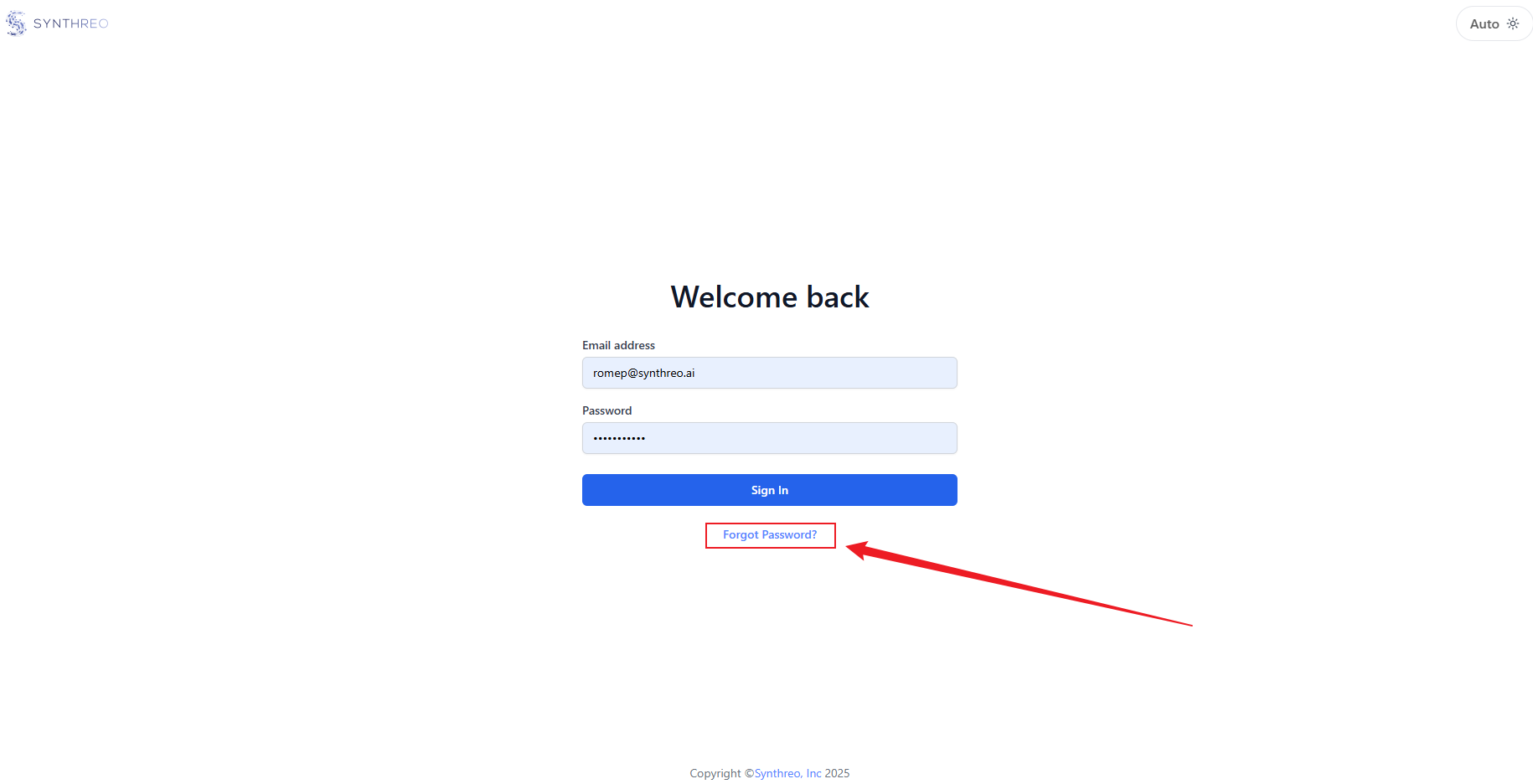
Section titled “Step 1: Open the Forgot Password Page”Go to https://threo.synthreo.ai and click the Forgot Password? link located below the login form. This link appears underneath the password field and the Sign In button.
Step 2: Enter Your Email Address
Section titled “Step 2: Enter Your Email Address”The page is headed Forgot your password? and asks for the email address you used to register. That is the same address you use to log in and the same one that received your original account invitation. Enter it in the Email address field and click Reset Password.
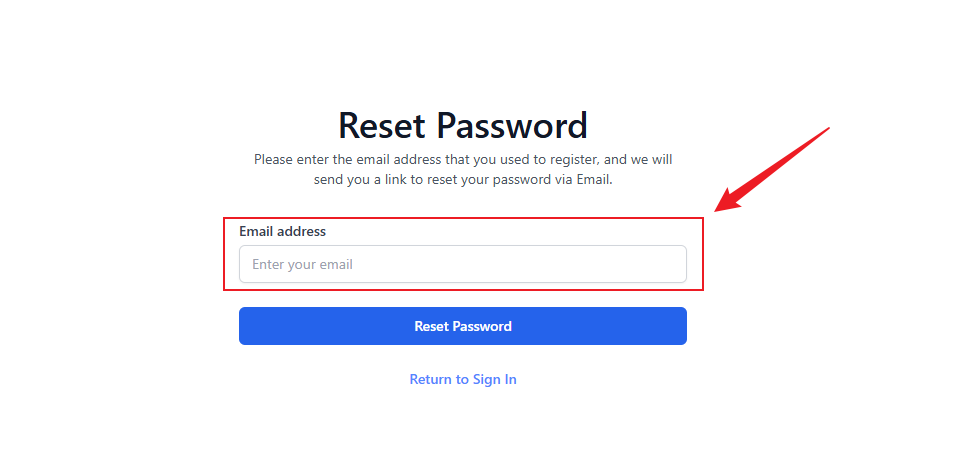
A confirmation appears - “We’ve sent a link to reset your password. Check your inbox.” - and you are returned to the sign-in page.
Note: You must enter the exact email address associated with your ThreoAI account. If you are unsure which email address was used to create your account, check your inbox for your original invitation email from noreply@synthreo.ai, or contact your organization’s ThreoAI administrator.
Step 3: Check Your Email
Section titled “Step 3: Check Your Email”Open your email inbox and look for a message with the subject line [Synthreo] Password Reset. The email is sent from noreply@synthreo.ai and contains a Continue to synthreo.ai button. Click this button to open the password reset page in your browser.
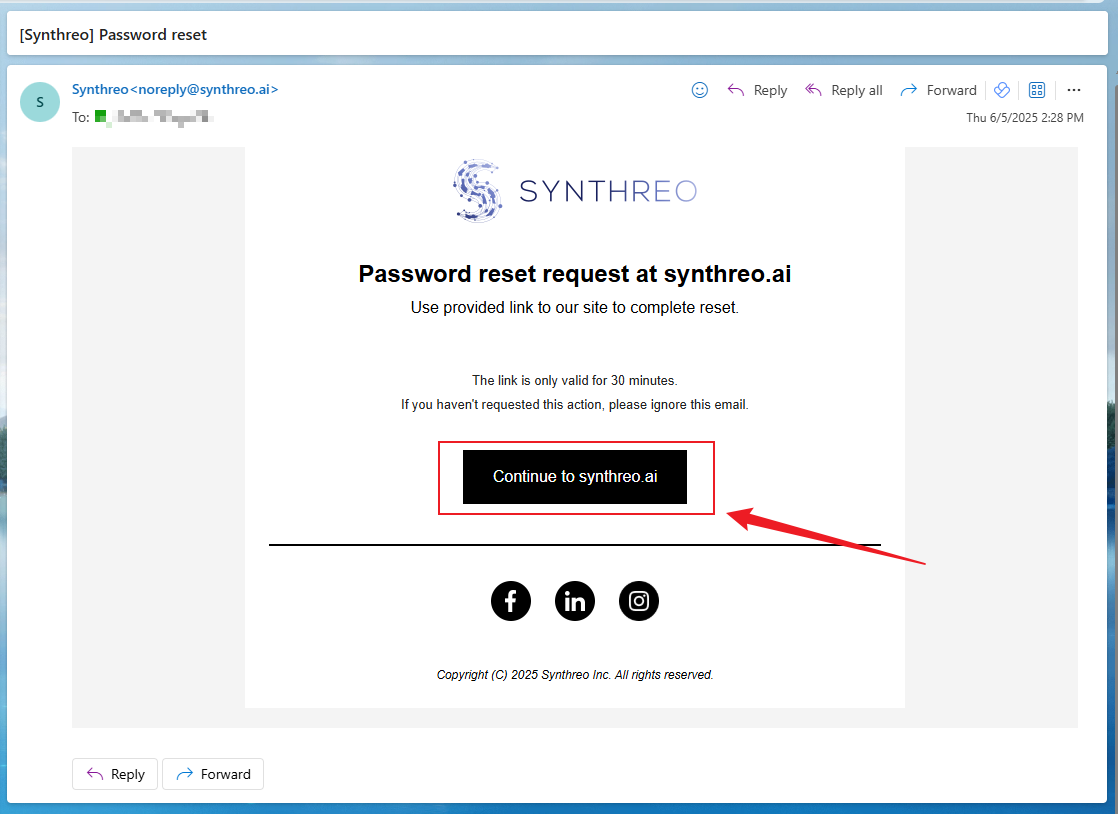
Important: The password reset link in the email is time-sensitive. Use it as soon as possible after receiving it. If the link has expired, return to the login page and start the process again by clicking Forgot Password? to request a new reset email.
Step 4: Create Your New Password
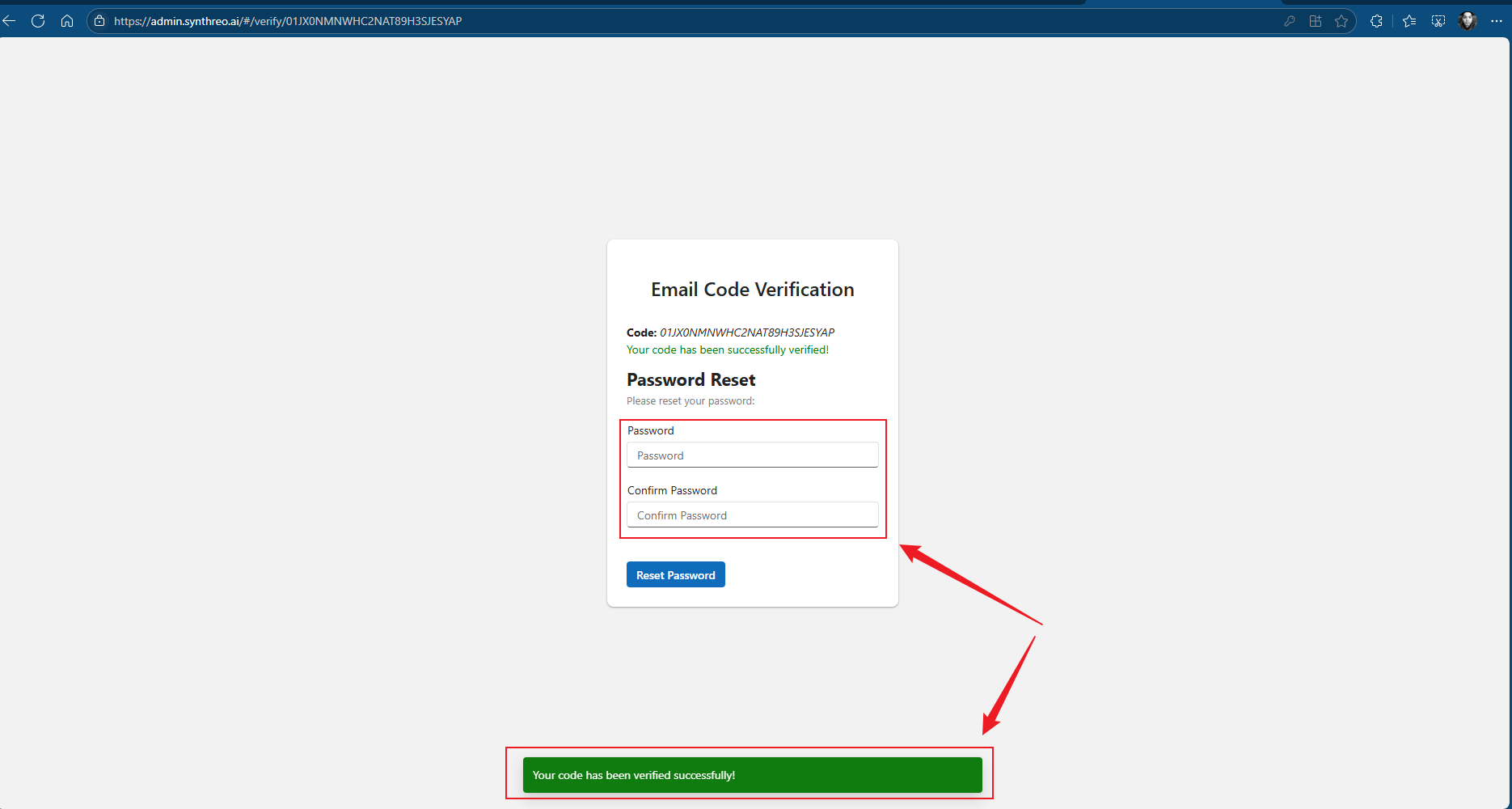
Section titled “Step 4: Create Your New Password”The reset page is headed Password Reset. Enter your new password twice, in the Password and Confirm Password fields.
Your new password must be eight or more characters and contain at least one upper case letter and at least one number. There is no special-character requirement and no maximum length. If the two fields do not match, or the password misses the policy, the form tells you inline and will not submit.
If your account uses an authenticator app for two-factor authentication, the page also shows a One time password field. Enter the current 6-digit code from your app before submitting. Accounts that receive codes by email do not see this field on the reset page.
Then select Reset Password.
Step 5: Confirm the Reset
Section titled “Step 5: Confirm the Reset”After submitting, you see a confirmation that your password has been reset successfully. You will also receive a confirmation email from Synthreo verifying that your password was changed.
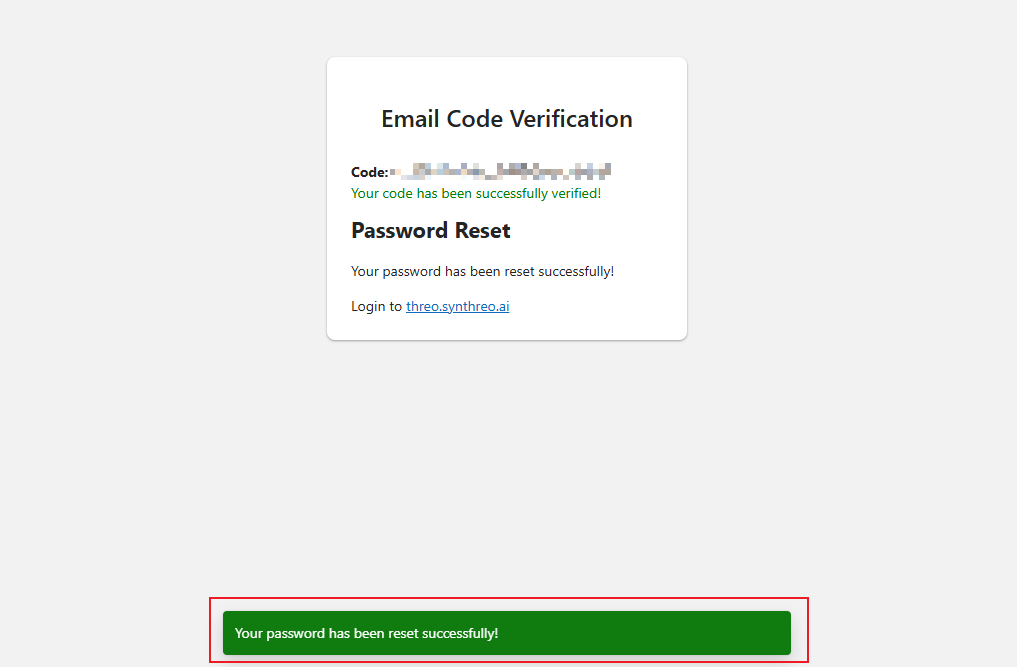
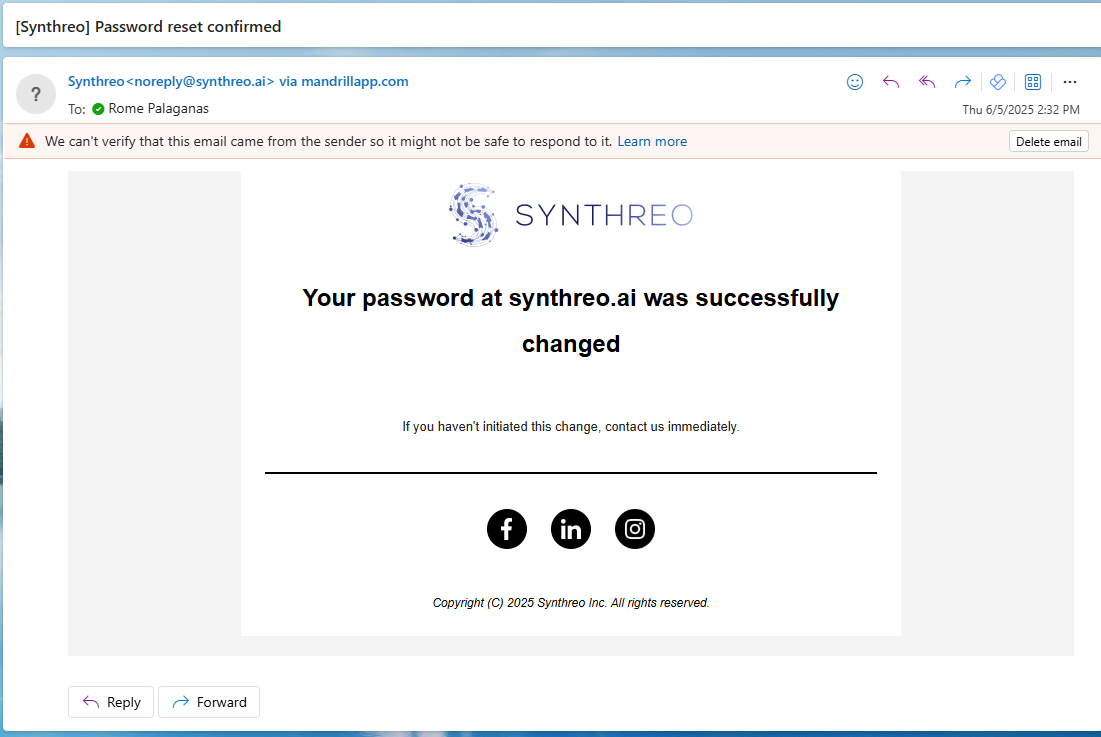
You can now return to https://threo.synthreo.ai and log in with your new password. Two-factor authentication still applies, so you will be prompted for a verification code after entering the password.
Didn’t Receive the Reset Email?
Section titled “Didn’t Receive the Reset Email?”If the password reset email does not arrive within a few minutes, try the following:
- Check your spam or junk folder. Emails from noreply@synthreo.ai may be filtered by your email provider. Look in spam, junk, promotions, or other filtered folders.
- Verify you entered the correct email address. The reset email is only sent to the address registered with your ThreoAI account. If you entered a different email address, no reset email will be sent - and no error message is displayed, deliberately, so that the form cannot be used to discover which addresses have accounts.
- Wait a few minutes and check again. Some corporate email systems may delay delivery of external messages. Allow up to five minutes before trying again.
- Do not request the reset over and over. Each account is limited to roughly five reset emails in a 24-hour window. Past that, further requests are accepted silently but no more mail is sent until the window rolls over.
- Ask your IT team to whitelist the sender. If your organization uses email filtering, request that
noreply@synthreo.aibe added to the allow list. - Check whether your organization uses single sign-on. Accounts governed by SSO have no local password to reset, so the reset email is never sent for them. Sign in through your identity provider instead, or ask your administrator.
- Contact your organization’s ThreoAI administrator if you continue to have trouble. Your administrator can verify your registered email address and assist with account recovery.
After Resetting Your Password
Section titled “After Resetting Your Password”Once your password has been reset, keep the following in mind:
- Your new password takes effect immediately. Use it the next time you sign in.
- Two-factor authentication is unchanged. Resetting your password does not alter your MFA method. You will still be prompted for a verification code on login.
- Update any saved passwords. If you use a password manager or have your ThreoAI password saved in your browser, update the stored password to match your new one.
Related
Section titled “Related”- Logging In - return to the login page after resetting your password
- Setting Up MFA - configure or change two-factor authentication on your account
- Profile Settings - manage your account information and security settings