

GPT Models and Vendor Keys
Configure AI models in Canopy. Set LLM vendors, deployments, temperature, and system prompts on the Synthreo Platform Admin GPT Models and Vendor Keys tabs.
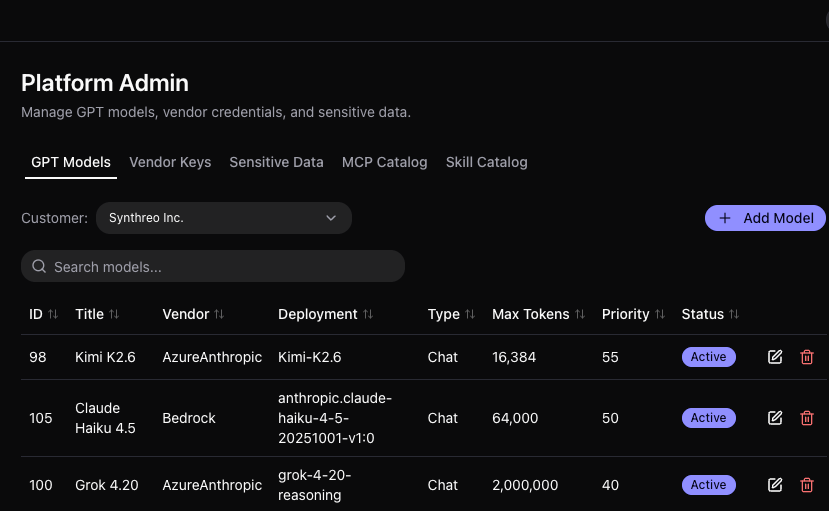
These controls now live under Platform Admin in Canopy, on the GPT Models and Vendor Keys tabs. This is where you configure the AI models available to your organization in ThreoAI. Each model configuration defines which vendor and deployment to use, how the model behaves, and what system-level instructions it follows. The Vendor Keys tab holds the vendor credentials those models authenticate with.
Organization-wide and global model configuration lives separately under AI Configuration, which is available to root administrators only. See Platform Admin for the full tab overview.
Accessing GPT Models
Section titled “Accessing GPT Models”- Log in to Canopy
- In the left sidebar, open Platform Admin and select the GPT Models tab
- You will see a list of your existing model configurations
Adding a New Model
Section titled “Adding a New Model”- Click the + Add New Model button
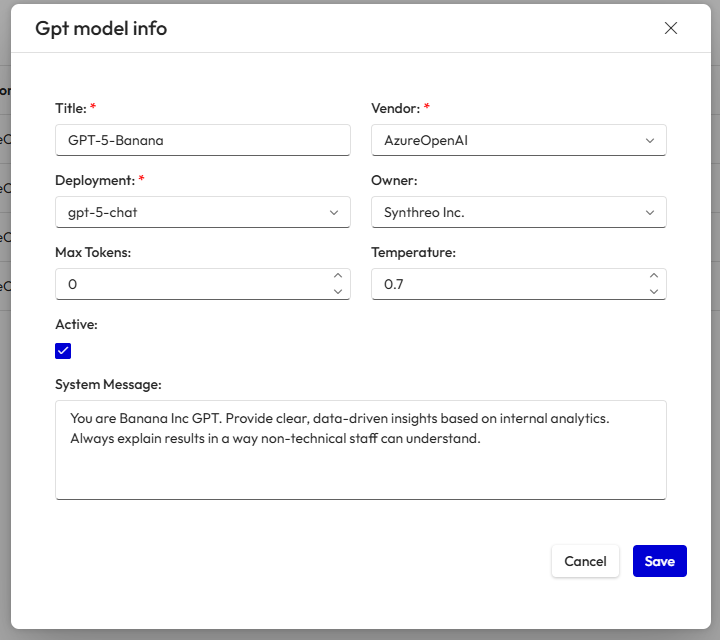
- Fill in the GPT Model Info form (see fields below)
- Click Save
Model Configuration Fields
Section titled “Model Configuration Fields”| Field | Required | Description |
|---|---|---|
| Title | Yes | Display name for the model. Use company or project names (e.g., “Banana Inc GPT”) rather than persona names (e.g., “SupportGPT”) |
| Vendor | Yes | AI vendor - e.g., AzureOpenAI |
| Deployment | Yes | Specific model deployment - e.g., gpt-5-chat |
| Owner | Auto | Shows your tenant organization |
| Max Tokens | No | Maximum response length. Higher values allow longer answers but increase cost and latency |
| Temperature | No | Controls creativity vs. consistency (see below) |
| Active | No | Check to make the model available in ThreoAI. Uncheck to hide it |
| System Message | No | The system prompt - base instructions that apply to all Experts using this model |
Temperature Guide
Section titled “Temperature Guide”| Range | Behavior | Best For |
|---|---|---|
| 0 - 0.3 | Deterministic, factual, repeatable | Data analysis, compliance, factual Q&A |
| 0.4 - 0.7 | Balanced creativity and stability | General business use |
| 0.8 - 1.0 | Creative, less predictable | Brainstorming, content generation |
Editing an Existing Model
Section titled “Editing an Existing Model”- Go to Platform Admin → GPT Models
- Click on the model you want to edit
- Modify any fields
- Click Save
Changes take effect immediately for new conversations. Existing conversations continue with the previous configuration until the user starts a new chat.
System Message (System Prompt)
Section titled “System Message (System Prompt)”The System Message field is where you define the system prompt for the model. This is the foundational instruction that applies to every Expert built on this model.
For a comprehensive guide on writing effective system prompts, see Using System Prompts in ThreoAI.
Best Practices
Section titled “Best Practices”- Name models after your company or project, not personas - personas belong in Expert Instructions
- Start with a moderate temperature (0.5) and adjust based on output quality
- Keep system messages concise - long prompts consume tokens and reduce conversation capacity
- Test before activating - configure and test with a small group before making a model available to all users
- Use the Active toggle to temporarily disable models during maintenance without deleting them
Troubleshooting
Section titled “Troubleshooting”| Issue | Cause | Fix |
|---|---|---|
| Model not visible in ThreoAI | Active checkbox not checked | Edit the model and enable the Active toggle, then save |
| Unexpected model behavior | Temperature or system message misconfigured | Review the Temperature and System Message fields; lower temperature for more predictable output |
| Changes not reflected in existing chats | Config updates only apply to new conversations | Ask users to start a new conversation to pick up the updated settings |
| Save button not responding | Required fields are empty | Ensure Title, Vendor, and Deployment are all filled in |
Can I have multiple model configurations for the same vendor? Yes. You can create as many configurations as needed. Each one appears as a separate option in ThreoAI, so users can choose the appropriate model for their task.
What happens if I uncheck Active on a model that users are currently using? The model will no longer appear in ThreoAI for new conversations. Existing open conversations that were already using the model may continue until the user starts a new session.
Can I delete a model configuration? Yes. Deleting a model removes it permanently. If users have Experts that reference the deleted model, those Experts will lose their model assignment. Deactivating (unchecking Active) is safer than deleting when you only want to hide the model temporarily.
Where does the System Message fit relative to Expert Instructions? The System Message is injected first, before Expert Instructions and before the user’s prompt. It sets universal rules for all Experts built on that model. See Using System Prompts in ThreoAI for full details.
Related Guides
Section titled “Related Guides”- Using System Prompts in ThreoAI - detailed guide on writing system prompts
- Platform Admin - the GPT Models, Vendor Keys, and catalog tabs in Canopy
- Platform Administration & App Permissions - what ThreoAI, Builder, and Canopy do