

ThreoAI Marketplace
Browse shared content in ThreoAI - the Explore hub with separate Experts and Agents catalogs, the combined Marketplace, filters, and how sharing reaches you.
Overview
Section titled “Overview”Two places show you what your organization has shared: the Explore hub and the Marketplace. Under Explore, Experts and Agents each get their own catalog. The Marketplace puts both in one view and gives you a filter to narrow down to a single type.
They draw on the same shared content. Reach for Explore when you want to browse one kind; reach for the Marketplace when you want everything at once.
Explore
Section titled “Explore”Explore is the hub for discovering what your organization has shared. Each kind of building block has its own catalog:
- Experts - reusable assistants people built and shared. Open the Experts catalog from the sidebar to see every Expert available to you, with a search box at the top.
- Agents - Builder agents shared with your organization. Open the Agents catalog from the sidebar to browse them.
Select any card to open it and start a conversation. Experts you use often also pin to the sidebar for one-click access.
Marketplace
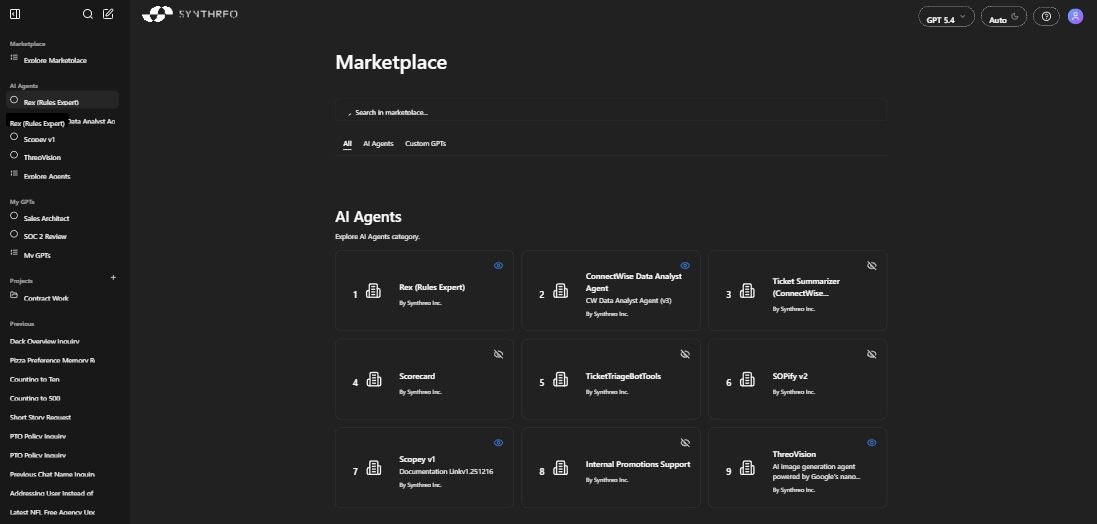
Section titled “Marketplace”The Marketplace is the combined catalog. Shared Experts and Agents sit side by side, so you can browse everything your organization has made available in one view.
Search and filter
Section titled “Search and filter”- A search box at the top filters cards by name or keyword as you type.
- A filter lets you narrow the view to Experts only or Agents only, or show both together.
Use the filter when you know the kind of thing you want. If you are after an Expert and you know its name, filtering to Experts and searching is the fastest path.
Each card shows an icon, name, short description, and who created it (for example, “By Synthreo Inc.” for catalog Agents, or a colleague’s name for a shared Expert). Select a card to open the details and start a conversation.
Starting a conversation
Section titled “Starting a conversation”- Browse or search for the Expert or Agent you want.
- Select the card to open its details - icon, name, creator, type, and description.
- Start the conversation. The chat loads with the Expert or Agent name and icon at the top.
From there it behaves like any ThreoAI chat. Use prompt starters if the creator added them, attach files, switch models, and send follow-ups. An Expert answers from its instructions and knowledge. An Agent runs its plan.
How shared content reaches you
Section titled “How shared content reaches you”You only ever see content shared with you, and two things have to line up before it shows up.
For an Expert, the owner flips its visibility to Shared in the Expert editor, and an access rule in Canopy names you or a group you are in. Once both are true, the Expert lands in your Experts catalog and the Marketplace. See Sharing an Expert.
For an Agent, your administrator deploys it from the Synthreo catalog and shares it with your organization or a group. It then shows up in your Agents catalog and the Marketplace.
When something you expect is missing, it usually comes down to one of these:
- the owner has not set the Expert to Shared yet,
- the access rule does not include you or your group, or
- your administrator has not deployed that Agent.
Ask the owner or your administrator, and give them the exact name you need.
Frequently Asked Questions
Section titled “Frequently Asked Questions”What is the difference between Explore and the Marketplace? Explore is the hub, and Experts and Agents each have their own catalog under it. The Marketplace is the combined view of shared Experts and Agents, with a filter to narrow to one type.
Do shared Experts work the same as my own? Yes. A shared Expert chats exactly like one you built. The only difference is that you cannot edit it - editing stays with the owner.
What happens if the owner stops sharing an Expert? It disappears from your catalog and you can no longer start new conversations with it. Past conversations may still show in your history.
Related
Section titled “Related”- Navigating the Interface - the Experts and Agents catalogs in the sidebar
- Using an Expert - open and chat with a shared Expert
- Creating an Expert - build your own Expert
- Sharing an Expert - control who can use an Expert you own
- Welcome to Builder - where Agents are built