

Sharing a Custom GPT in ThreoAI
How to share a Custom GPT with other users in ThreoAI - set your GPT to Shared, coordinate with your administrator to configure access rules in Tenant Management, and manage shared GPTs over time.
Overview
Section titled “Overview”Sharing a Custom GPT makes it visible to other users in your organization, either to specific people or groups, or publicly in the Marketplace for all permitted users to discover. Because ThreoAI is an organization-managed platform, GPT sharing is controlled by your administrator - users cannot share GPTs directly to other users from the interface alone. This two-step process (you set the GPT to Shared, your admin configures access rules) ensures that all shared AI assistants meet your organization’s security and compliance standards before being made available to others.
This page explains the full sharing workflow from your perspective as a GPT creator, what information your administrator needs, what happens after sharing is enabled, and how to manage a shared GPT over time.
How GPT Sharing Works
Section titled “How GPT Sharing Works”Sharing a Custom GPT is a two-step process that involves both the GPT creator (you) and your organization’s ThreoAI administrator. Here is the complete workflow:
Step 1: Set Your GPT to Shared
Section titled “Step 1: Set Your GPT to Shared”Before your administrator can create access rules, you need to mark your GPT as Shared in its configuration:
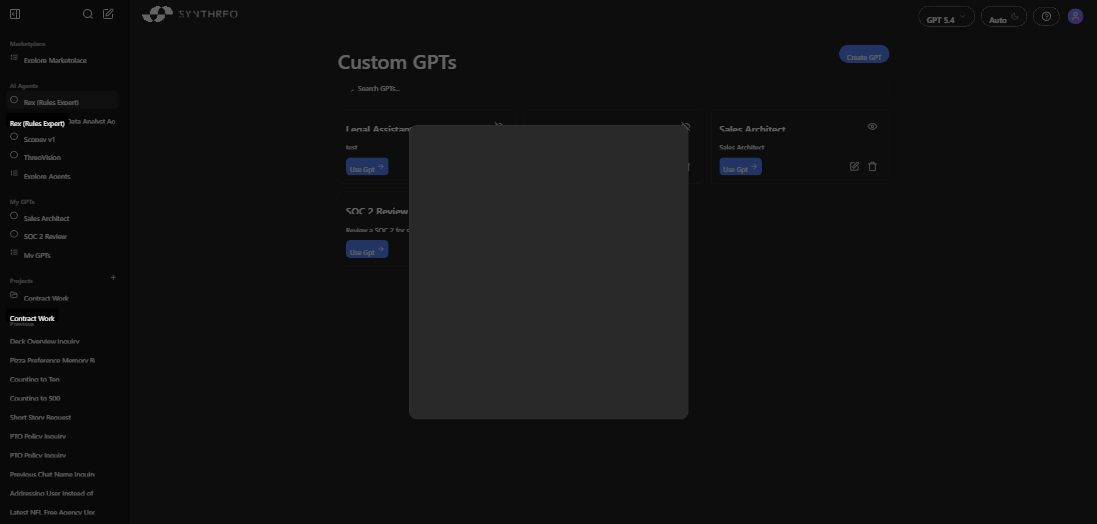
- Go to My GPTs in the left sidebar (or navigate to
#/my-gpts). - Find the GPT you want to share and click the edit (pencil) icon on its card.
- In the GPT configuration dialog, select the Sharing tab.
- Toggle the sharing setting from Private to Shared.
- Click Save (or Create GPT if this is a new GPT) to save the change.
Setting a GPT to Shared does not immediately make it visible to other users. It signals to the system that this GPT is eligible for sharing, but the actual distribution to users is controlled by your administrator through Tenant Management.
Step 2: Contact Your Administrator
Section titled “Step 2: Contact Your Administrator”After setting your GPT to Shared, contact your ThreoAI administrator and request that they create an Access Rule for your GPT. Your administrator opens Tenant Management and creates a rule that links your GPT to the specific users or groups who should have access to it.
Step 3: Access Rule Takes Effect
Section titled “Step 3: Access Rule Takes Effect”Once the administrator saves the Access Rule, the GPT becomes visible to the specified users. Depending on how the rule is configured, the GPT may appear in the Marketplace under the Custom GPTs section, in specific users’ My GPTs lists, or both.
Summary of the Sharing Workflow
Section titled “Summary of the Sharing Workflow”| Step | Who | Action |
|---|---|---|
| 1 | You (GPT creator) | Build and save the GPT, set it to Shared in the Sharing tab |
| 2 | You (GPT creator) | Contact your administrator with the GPT name and sharing details |
| 3 | Administrator | Creates an Access Rule in Tenant Management linking the GPT to users or groups |
| 4 | Automatic | The GPT appears in the Marketplace or My GPTs for the specified users |
What to Tell Your Administrator
Section titled “What to Tell Your Administrator”When requesting that a GPT be shared, provide your administrator with the following information to ensure the access rule is configured correctly:
- The name of the Custom GPT - the exact name as it appears in your My GPTs list, so your administrator can identify the correct GPT in Tenant Management.
- Who should have access - be specific about the intended audience:
- Specific individual users (provide their names or email addresses)
- A user group (provide the group name if your organization uses group-based access)
- Everyone in the organization
- Where it should appear - let your administrator know whether the GPT should appear in the Marketplace (visible to all permitted users when they browse the Marketplace page), be added directly to specific users’ My GPTs lists, or both.
- A brief description of what the GPT does - this helps your administrator understand the GPT’s purpose and verify that sharing it aligns with organizational policies. For example: “This GPT answers employee questions about our IT security policies using the uploaded Security Handbook.”
What Happens After Sharing
Section titled “What Happens After Sharing”Once your administrator has configured the Access Rule and saved it, the following takes effect:
- Users with access see the GPT in the Marketplace under the Custom GPTs section when they browse or search the Marketplace page.
- Clicking the GPT card in the Marketplace opens a detail panel with the GPT’s name, description, creator attribution, and a Start Chat button. Clicking Start Chat opens a conversation with the GPT immediately.
- Users do not need to create their own copy of the GPT. They use the shared version directly, which means everyone who has access to the GPT is using the same instruction prompt, knowledge base, and configuration that you defined.
- Conversation starters that you configured for the GPT appear when users open it, helping them understand what the GPT is designed to do and how to interact with it effectively.
- Each user’s conversations are private to them. Even though multiple users share the same GPT, their individual conversations with it are not visible to other users or to you as the GPT creator.
Managing a Shared GPT
Section titled “Managing a Shared GPT”As the creator and owner of the Custom GPT, you retain full control over its configuration even after it has been shared with others. Here is how to manage a shared GPT over time:
Editing a Shared GPT
Section titled “Editing a Shared GPT”You can edit any aspect of a shared GPT at any time:
- Go to My GPTs in the left sidebar.
- Find the shared GPT and click the edit (pencil) icon on its card.
- The GPT configuration dialog opens with all previously saved settings, including the GPT Name, Description, GPT Instructions, Conversation Starters, Training Documents, Actions, and Sharing settings.
- Make your changes to any tab or field.
- Click Save to apply the changes.
Changes to the GPT’s instructions, knowledge base, conversation starters, or other settings take effect immediately for all users who have access to the shared version. The next time a user starts a new conversation with the GPT (or continues an existing one), they will interact with the updated configuration.
Tip: If you are making significant changes to a shared GPT that other users rely on, consider notifying the affected users before or after making the update. This is especially important if you are changing the GPT’s behavior, removing training documents, or modifying its scope.
Reverting a Shared GPT to Private
Section titled “Reverting a Shared GPT to Private”If you want to stop sharing a GPT:
- Open the GPT for editing from your My GPTs page.
- Go to the Sharing tab.
- Toggle the sharing setting from Shared back to Private.
- Click Save.
This removes the GPT from the Marketplace and from other users’ access. However, the Access Rule in Tenant Management may still exist - coordinate with your administrator to have them remove the corresponding rule to keep the configuration clean.
Deleting a Shared GPT
Section titled “Deleting a Shared GPT”If you delete a Custom GPT that has been shared with other users, it will no longer be accessible to anyone. Users who previously had access will not be able to start new conversations with it.
Warning: Deleting a shared GPT cannot be undone. If other users or teams depend on the GPT for their workflows, coordinate with your administrator and the affected users before deleting it. Consider reverting the GPT to Private first if you only want to stop sharing it without permanently removing it.
Understanding Private vs. Shared
Section titled “Understanding Private vs. Shared”| Aspect | Private GPT | Shared GPT |
|---|---|---|
| Visibility | Only you can see and use it | Visible to users specified by the administrator’s Access Rule |
| Marketplace appearance | Does not appear in the Marketplace | Appears in the Marketplace Custom GPTs section for permitted users |
| Editing | Only you can edit | Only you (the creator) can edit; other users can only use it |
| Conversations | Your conversations only | Each user has their own private conversations |
| Admin involvement | No admin action needed | Admin must create an Access Rule in Tenant Management |
Frequently Asked Questions
Section titled “Frequently Asked Questions”Can I share a GPT directly with another user without involving an administrator? No. ThreoAI’s sharing model requires an administrator to configure access rules in Tenant Management. This design ensures that all shared GPTs are reviewed and approved by your organization’s administrator before being distributed to users, maintaining security and compliance standards.
Can I see who is using my shared GPT? As a GPT creator, you do not have direct visibility into which users are accessing your shared GPT or what conversations they are having with it. If you need usage information, contact your administrator, who may have access to usage analytics through Tenant Management.
What if I want to share a GPT with just one other person? The process is the same. When contacting your administrator, specify the individual user who should have access. The administrator can create an Access Rule targeting a single user rather than a group or the entire organization.
Do changes I make to a shared GPT require the administrator to update the Access Rule? No. Changes to the GPT’s instructions, training documents, conversation starters, or other configuration settings take effect immediately for all users with access. The Access Rule only controls who can see the GPT - it does not need to be updated when you change the GPT’s content.
Related
Section titled “Related”- Creating a Custom GPT - build a Custom GPT with instructions, training documents, and actions
- Using a Custom GPT - how to find and use a GPT in conversation
- ThreoAI Marketplace - browse the Marketplace where shared GPTs appear
- ThreoAI Overview - full platform overview including Custom GPTs and AI Agents