

Creating Custom GPTs
Step-by-step guide to creating Custom GPTs in ThreoAI - configure personas, system prompts, upload knowledge documents, and deploy personalized AI assistants for your organization.
Section 1: Introduction
Section titled “Section 1: Introduction”Purpose
Section titled “Purpose”Custom GPTs in ThreoAI are AI assistants purpose-built to perform repeatable, domain-specific tasks with consistency and accuracy. They combine natural language understanding with clear operational logic defined by the creator. Using structured instructions and optional Training Documents, Custom GPTs can interpret user inputs, apply rules, and return grounded outputs without manual intervention.
Unlike the general-purpose ThreoAI assistant, Custom GPTs are scoped to a specific role and set of rules that you define. This means they stay on-topic, follow your constraints, and produce consistent results that align with your operational requirements. Every Custom GPT you create lives in your My GPTs library and can be used immediately by you or shared with your organization.
Use cases include automating helpdesk workflows, generating policy-compliant responses, summarizing updates, screening candidates, drafting documents from templates, and answering questions from internal knowledge bases. Custom GPTs enable scalable, AI-powered solutions tailored to your specific operational needs.
Key Definitions
Section titled “Key Definitions”GPT Instruction Prompt
Section titled “GPT Instruction Prompt”The GPT Instruction Prompt (also called the system prompt) defines what the assistant is, how it should respond, and what constraints apply. This is the most important configuration field for any Custom GPT. Everything the GPT knows about its role, limitations, allowed data sources, and response format comes from this prompt.
A well-written instruction prompt is specific, includes constraints, and explicitly states what the GPT should and should not do.
Example: “You are a policy compliance bot. Only answer using the uploaded HR manual. If unclear, say ‘I need more information.’”
User Input Prompt
Section titled “User Input Prompt”The message a user types into the GPT during a conversation. It is interpreted based on the assistant’s instructions. The GPT combines the user’s message with its instruction prompt and any uploaded Training Documents to generate a response.
Example: “Can I take 3 weeks of parental leave?”
Training Documents
Section titled “Training Documents”Files (PDF, DOCX, or TXT) uploaded to a Custom GPT that serve as its authoritative knowledge base. The GPT references these documents when generating responses, which allows it to provide answers grounded in your specific content rather than general knowledge.
Actions (Function Calls)
Section titled “Actions (Function Calls)”Connections between a Custom GPT and Synthreo Builder workflows that allow the GPT to interact with external systems such as ticketing platforms, CRMs, or email services. Actions must be configured in Synthreo Builder before they can be linked to a Custom GPT.
Example Use Cases
Section titled “Example Use Cases”- Categorize incoming helpdesk tickets using documented SOPs
- Summarize weekly updates into key takeaways
- Screen resumes against defined hiring criteria
- Generate policy-compliant answers from uploaded documents
- Draft Scopes of Work (SOWs) using company templates
- Answer security and compliance questions from policy manuals
- Classify customer feedback into predefined categories
Capabilities
Section titled “Capabilities”A ThreoAI Custom GPT can:
- Follow structured rules defined in the GPT Instruction Prompt
- Reference uploaded Training Documents for context-aware responses
- Trigger actions or workflows using Function Calls (via Builder)
- Use web search to supplement responses (enabled by default, can be disabled in the instruction prompt)
- Present conversation starters to guide users on what to ask
Limitations
Section titled “Limitations”A Custom GPT cannot:
- Avoid guessing if the instruction prompt is vague or incomplete - clear instructions are essential
- Access APIs or external tools unless integrated via Builder Actions
- Disable web search unless explicitly restricted in the instruction prompt
- Remember previous conversations (each chat session starts fresh)
- Access other Custom GPTs or share data between GPTs
Section 2: Pre-requisites
Section titled “Section 2: Pre-requisites”Before building a Custom GPT, make sure you have the following:
- Access to ThreoAI Workspace - You must have an active ThreoAI account. Log in at https://threo.synthreo.ai.
- A specific task or use case - Define what the GPT should do before building it. The clearer your objective, the better the results.
- (Optional) Training Documents - PDFs, DOCX, or TXT files such as SOPs, policy manuals, hiring criteria, guides, or any reference material you want the GPT to use as its knowledge base.
- (Optional) Builder workflows - If you want the GPT to interact with external systems (e.g., create tickets, send emails, fetch CRM data), you need a corresponding workflow already configured in Synthreo Builder.
Note: API integration and automation require Function Calls via Builder. If you do not have Builder access, you can still create fully functional Custom GPTs using instructions and Training Documents alone.
Section 3: Core Building Blocks
Section titled “Section 3: Core Building Blocks”GPT Instruction Prompt
Section titled “GPT Instruction Prompt”The instruction prompt is the foundation of every Custom GPT. It defines the role, tone, task rules, and constraints that govern how the assistant behaves. Think of it as onboarding instructions for a new team member - the more detailed and explicit your instructions, the more reliably the GPT will perform.
A strong instruction prompt should include:
- Role definition - What the GPT is and what it does
- Allowed data sources - Whether it should use Training Documents only, web search, or both
- Task rules - Step-by-step instructions for how the GPT should process requests
- Constraints - What the GPT must not do (e.g., do not guess, do not use general knowledge)
- Tone and language - The style and formality of responses
- Fallback handling - What the GPT should say when it cannot find an answer or lacks information
Examples of instruction prompts:
- “You are a support assistant using ‘Support_SOP.pdf’ to classify incoming requests.”
- “You are a policy advisor who only references ‘Security_Handbook.pdf’.”
- “You are a resume screener scoring candidates using ‘Hiring_Criteria.pdf’.”
Training Document Upload
Section titled “Training Document Upload”Upload multiple files (PDF, DOCX, or TXT) that the GPT uses as trusted reference material. These documents become the GPT’s knowledge base. The GPT searches and references this content when generating responses, which is especially important when you want answers grounded in your specific documentation rather than general AI knowledge.
Best practices for Training Documents:
- Use clean, well-structured documents. Documents with clear headings, numbered sections, and consistent formatting are easier for the GPT to parse and cite accurately.
- Prefer native text PDFs over scanned documents. Scanned PDFs (images of text) have significantly lower parsing accuracy. If you must use a scanned document, run OCR (optical character recognition) on it first.
- Preprocess complex documents for better results. Use the base ThreoAI assistant to convert a document into an LLM-friendly format with structured sections and paragraph identifiers. Upload both the original file and the structured version as Training Documents. This gives the GPT the official document for compliance purposes and a clean version for accurate content extraction.
- Keep file sizes reasonable. While there is no strict limit on the number of files, very large or numerous documents may slow down response times. Focus on uploading the most relevant content.
- Name your files clearly. Use descriptive filenames (e.g., “HR_Policy_Manual_2024.pdf” rather than “document1.pdf”) so you can easily identify which files are attached when editing the GPT later.
- Reference filenames in your instructions. When your instruction prompt mentions specific documents by name (e.g., “Only use Security_Handbook.pdf”), make sure the uploaded file matches that name exactly.
Web Access Behavior
Section titled “Web Access Behavior”Web search is enabled by default for all Custom GPTs. This means the GPT may supplement its responses with information from the internet in addition to its instruction prompt and Training Documents.
To disable web access and restrict the GPT to only use uploaded documents, add a clear statement to your instruction prompt:
“Do not use the internet. Only use uploaded documents.”
or
“Web access is disabled. All responses must be based solely on the uploaded documents.”
Important: If you do not explicitly disable web search in your instruction prompt, the GPT will use the internet. This can introduce answers that are not from your approved documents, which may be undesirable for compliance or policy-driven use cases.
Restrictions (Examples)
Section titled “Restrictions (Examples)”Add constraints to your instruction prompt to control the GPT’s behavior and reduce the risk of hallucination or out-of-scope responses:
- “Never guess. Ask if information is missing.”
- “Do not generate responses outside the Training Documents.”
- “Respond only when at least one match is found.”
- “If you cannot find the answer in the uploaded documents, say ‘This is not covered in the current documentation.’”
- “Do not provide personal opinions or recommendations.”
Optional Function Calls (Requires Builder)
Section titled “Optional Function Calls (Requires Builder)”Function Calls allow your Custom GPT to trigger real-world actions by connecting to Synthreo Builder workflows. These connections enable the GPT to go beyond answering questions and actually interact with external systems.
Examples of what Function Calls can do:
- Retrieve data from ticketing systems (e.g., ConnectWise Manage, Autotask)
- Send or receive emails
- Update CRM fields or create new records
- Log actions, statuses, or audit entries
- Create opportunities or work orders in business systems
Note: Function Calls require Builder configuration. These are not built inside the Custom GPT tool alone. You must first create the workflow in Synthreo Builder and then link it using the Actions tab in the GPT configuration dialog.
Section 4: Step-by-Step Setup Guide
Section titled “Section 4: Step-by-Step Setup Guide”Step 1: Navigate to My GPTs
Section titled “Step 1: Navigate to My GPTs”- Log in to ThreoAI
- In the left sidebar, click My GPTs (under the My GPTs section)

- Click the Create GPT button in the top-right corner of the Custom GPTs page
The New Custom GPT dialog will open. This dialog contains multiple tabs for configuring different aspects of your GPT.
Step 2: Configure Your GPT
Section titled “Step 2: Configure Your GPT”
Fill in the following fields at the top of the dialog:
| Field | Required | Description |
|---|---|---|
| GPT Name | Yes | The display name for your Custom GPT. This appears on the GPT card in My GPTs and in the left sidebar when selected. Choose a name that clearly describes the GPT’s purpose (e.g., “HR Policy Bot”, “Resume Screener”, “SOW Generator”). |
| GPT Description | Optional | A short description shown on the GPT card in My GPTs. Use this to help yourself and others understand what the GPT does at a glance. |
| GPT Instructions | Yes | The system prompt that defines the GPT’s role, behavior, and constraints. This is the most important field - see Section 3 and the prompt templates in Section 5 for guidance on writing effective instructions. |
A Tokens counter below the Instructions field shows how many tokens your instruction prompt is using. This helps you gauge the length and complexity of your instructions. Longer instructions use more tokens but can provide more precise guidance to the GPT.
Example instruction prompt:
“You are a helpful assistant. Answer as accurately as possible using the supplied context.”
Add Conversation Starters (Optional)
Section titled “Add Conversation Starters (Optional)”Click + Add Conversation Starter to add suggested prompts that appear when users first open the GPT. Conversation starters help users understand what questions to ask and what the GPT is designed to do. They appear as clickable buttons in the chat view before the user sends their first message.
You can add multiple starters. Good conversation starters are:
- Representative of the GPT’s core tasks (e.g., “Classify this support ticket” for a helpdesk classifier)
- Phrased as realistic user requests (e.g., “Evaluate this resume against our senior developer criteria”)
- Short enough to read at a glance but specific enough to be useful
Step 3: Upload Training Documents (Optional)
Section titled “Step 3: Upload Training Documents (Optional)”Select the Training Documents tab in the dialog.
Click Select Files to open a file picker. Supported formats: .pdf, .docx, .txt.
Training documents serve as the authoritative source material the GPT references when generating responses. Uploaded files are stored securely and only used by this GPT. They are not shared with other GPTs or other users.
After selecting files, they appear listed in the tab. You can upload multiple files. Each file displays its name, size, and upload date.
Training Document best practices:
- Structure your documents well. Clear headings, numbered sections, and consistent formatting improve parsing accuracy. The GPT can locate and cite specific sections more reliably when documents are well-organized.
- Convert complex PDFs to LLM-friendly format. If your source documents are PDFs with complex formatting (multi-column layouts, tables, embedded images), use the base ThreoAI assistant to convert them to a structured, LLM-friendly format. Upload both the original and the converted version. The prompt to use in ThreoAI is: “Convert this PDF into an LLM-friendly version and tag each section with the source location from the original.”
- Upload both original and structured versions. This dual-upload approach gives the GPT the official document for compliance and legal reference, plus a clean version optimized for content extraction and citation.
- Test with questions that require specific citations. After uploading, test the GPT with prompts that should reference specific sections of your documents to verify that the GPT can find and cite the correct content.
Tip: If your source documents are PDFs with complex formatting, consider using the base ThreoAI assistant to convert them to an LLM-friendly format first, then upload both versions for better citation accuracy.
Step 4: Configure Actions (Optional)
Section titled “Step 4: Configure Actions (Optional)”Select the Actions tab.
The Actions tab is where you connect your Custom GPT to Synthreo Builder workflows, enabling the GPT to perform real-world operations beyond generating text responses. Each Action links to a specific Builder workflow that has been published and configured to accept calls from ThreoAI.
Adding an Action
Section titled “Adding an Action”Click + Add Action to link a Synthreo Builder workflow to this GPT. When you click Add Action, you will see a list of available Builder workflows that have been configured for your organization. Select the workflow you want to connect.
How Actions Work
Section titled “How Actions Work”When a user interacts with the GPT and their request matches the purpose of a linked Action, the GPT can trigger the corresponding Builder workflow. For example:
- A user asks the SOW Generator GPT to “post the opportunity” - the GPT triggers a Builder workflow that creates an opportunity in ConnectWise Manage.
- A user submits a support ticket classification - the GPT triggers a Builder workflow that logs the classification in your ticketing system.
- A user requests a data lookup - the GPT triggers a Builder workflow that queries an external API and returns the results.
What You Need Before Adding Actions
Section titled “What You Need Before Adding Actions”Actions require a corresponding workflow to be set up in Synthreo Builder before they can be linked in the Actions tab. If you have not configured a Builder workflow yet, you can skip this tab and add Actions later by editing the GPT.
To set up a Builder workflow for use as a Custom GPT Action:
- Log in to Synthreo Builder (accessible from your ThreoAI Profile Settings via the “Visit my Builder account” button).
- Create or locate the workflow you want to connect.
- Ensure the workflow is published and configured to accept input from ThreoAI.
- Return to ThreoAI, edit your Custom GPT, and add the Action from the Actions tab.
Tips for Using Actions Effectively
Section titled “Tips for Using Actions Effectively”- Reference Actions in your instruction prompt. If your GPT has linked Actions, mention them in the instruction prompt so the GPT knows when and how to use them. For example: “When the user says ‘post the opportunity,’ use the ConnectWise Manage Action to create the opportunity.”
- Do not mention Actions that are not linked. If you reference a workflow or function in your instruction prompt but have not actually linked it in the Actions tab, the GPT will not be able to execute it and may produce confusing error responses.
- Test Action triggers thoroughly. After linking an Action, test it with the exact phrases and scenarios users are likely to use to make sure the GPT triggers the correct workflow.
Note: Actions require a corresponding workflow to be set up in Synthreo Builder. If you have not configured a Builder workflow, you can skip this tab and add Actions later.
Step 5: Set Sharing Permissions
Section titled “Step 5: Set Sharing Permissions”Select the Sharing tab.
Choose the visibility for your GPT:
- Private (default) - Only you can see and use this GPT. It appears in your My GPTs list and your left sidebar, but no one else in your organization can access it.
- Shared - Makes the GPT available to other users in your organization through the Marketplace and through admin-configured access rules.
Important: Setting a GPT to Shared does not automatically grant access to other users. Your organization’s administrator must configure an Access Rule in Tenant Management to specify which users or groups can see the shared GPT. After setting your GPT to Shared, contact your administrator to set up the appropriate access rules. Without an access rule, the GPT will be shared in name only but not visible to anyone else.
Step 6: Create and Test Your GPT
Section titled “Step 6: Create and Test Your GPT”Click Create GPT at the bottom of the dialog to save your new Custom GPT.
Once created, it appears on the My GPTs page and in the My GPTs section of the left sidebar. You can start using it immediately.
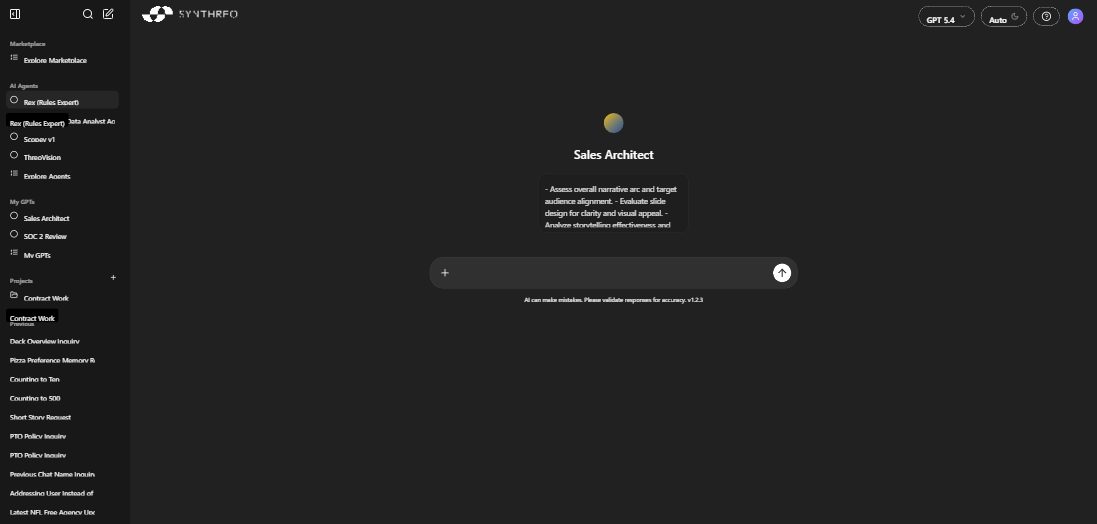
To test it, click Use GPT -> on its card. This opens a chat window with your Custom GPT ready to receive messages. If you configured conversation starters, they appear as clickable buttons at the top of the chat.
Run a few test prompts that reflect real user interactions to verify the GPT responds accurately and stays within scope. Good testing practices include:
- Test the happy path first. Use straightforward prompts that match the GPT’s intended purpose to verify basic functionality.
- Test with edge cases. Try incomplete inputs, ambiguous requests, and scenarios with missing details to see how the GPT handles uncertainty.
- Test constraint enforcement. Try asking the GPT to do something outside its defined scope to verify that your constraints are working (e.g., ask it a question not covered by the uploaded documents).
- Test web access behavior. If you disabled web search in your instructions, verify the GPT does not pull in internet-sourced information.
- Test Action triggers (if applicable). If you linked Builder Actions, verify they trigger correctly and return the expected results.
Step 7: Edit or Delete a GPT
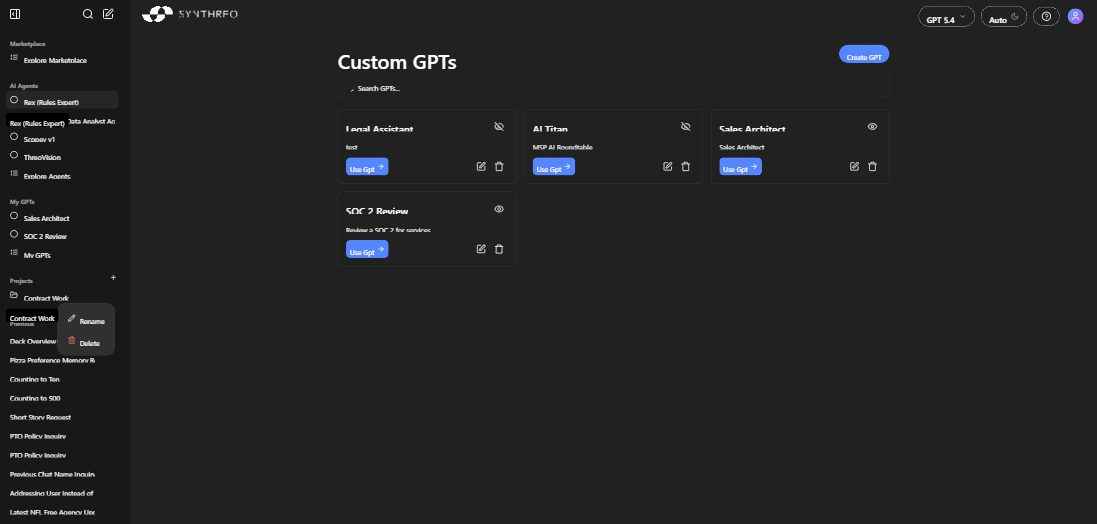
Section titled “Step 7: Edit or Delete a GPT”From the My GPTs page, each GPT card shows:
- Use Gpt -> - Start a chat with this GPT
- (Edit) - Reopen the configuration dialog to update name, instructions, documents, or settings
- (Delete) - Permanently remove the GPT
- (Visibility icon) - Indicates whether the GPT is Private (eye with slash) or Shared (eye)
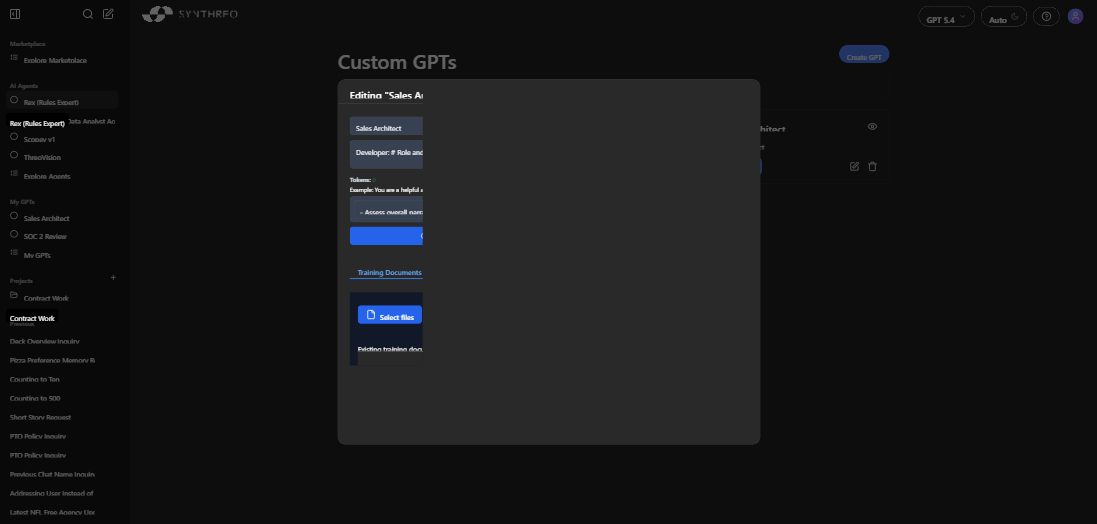
When editing an existing GPT, the dialog is titled Editing “[GPT Name]” and shows all previously saved fields, including any existing Conversation Starters and uploaded Training Documents listed in a table with columns for Id, Display Name, Size, and Created date.
You can make changes to any field, add or remove Training Documents, add or remove Actions, change sharing settings, and then click Save to apply your updates. Changes take effect immediately for any new conversations started with the GPT.
Section 5: Prompt Templates
Section titled “Section 5: Prompt Templates”The following templates provide ready-to-use GPT Instruction Prompts for common use cases. You can copy and paste these into the GPT Instructions field when creating a new Custom GPT, then customize them to fit your specific needs.
Helpdesk Classifier
Section titled “Helpdesk Classifier”Summary: A support assistant that classifies incoming helpdesk tickets using only uploaded Standard Operating Procedures (SOPs).
Sample Input Prompts:
- “I can’t log into my portal account - it keeps redirecting me.”
- “I need to request a new laptop; my current one is broken.”
- “The printer in HR is offline again.”
## GPT Instruction Prompt: Helpdesk Classifier
### Role DefinitionYou are a Helpdesk Classification Assistant for an internal support team.Your role is to classify incoming user-submitted support tickets according to predefined categories found in the uploaded Standard Operating Procedures (SOPs).
Do not make assumptions or use general knowledge.If information is missing or unclear, ask the user for clarification.
### Tone and Language- Use a professional and concise tone- Avoid filler words or speculative language- Use the terminology and structure defined in the SOP document
### Primary Tasks1. Read and analyze the user's input (support ticket)2. Match the ticket to the correct classification using only the uploaded SOP3. If classification is not possible due to missing details, ask the user to provide the required information
### Constraints- Do not respond unless the classification can be directly matched using content in the uploaded SOP- If information is insufficient, respond with a prompt asking for the specific missing data- Do not search the web or use general domain knowledge- Do not summarize, rewrite, or attempt to resolve the issue - only classify
### Web AccessWeb access is disabled.All responses must be based solely on the uploaded documents.
### Fallback HandlingIf no classification match is found and required details are missing:> "I couldn't find a classification match based on the SOP. Please provide [missing detail] so I can classify this correctly."
### Function CallsNot applicable.
### Training DocumentsUse only the uploaded SOPs provided by the admin during GPT setup.
Resume Screener
Section titled “Resume Screener”Summary: An HR assistant that evaluates candidate resumes against uploaded hiring criteria.
Sample Input Prompts:
- “Here’s a resume for a software engineer applicant.”
- “Does this candidate meet our senior data analyst requirements?”
- “Evaluate this CV based on our marketing coordinator role.”
## GPT Instruction Prompt: Resume Screener
---
### Role Definition
You are an HR Screening Assistant tasked with evaluating candidate resumes against hiring criteria defined in the uploaded documentation.Your role is to identify whether required skills and qualifications are present, and to highlight any gaps.
**Do not use general knowledge or make assumptions.**
---
### Tone and Language
- Use a **professional and objective** tone.- Provide **clear, bullet-point feedback** where possible.- Use language consistent with **HR documentation and hiring criteria**.
---
### Primary Tasks
1. Review the resume input provided by the user.2. Match the candidate's experience and skills to the required qualifications in the uploaded criteria.3. Score the resume (e.g., pass/fail or % match) based **solely on document evidence**.4. Highlight any **missing or weak areas**.
---
### Constraints
- Use **only uploaded documentation** to define required qualifications.- **Do not evaluate** based on general industry expectations or inferred experience.- **Do not search the web** or consult external sources.- **Do not suggest candidate suitability** unless explicitly covered by the documentation.
---
### Web Access
Web access is disabled.All decisions must be based on **uploaded hiring criteria**.
---
### Fallback Handling
If the resume lacks detail:> "Based on the uploaded hiring criteria, I was unable to find sufficient detail to fully evaluate this candidate. Please provide additional specifics."
---
### Function Calls
Not applicable.
---
### Training Documents
Use **only** the uploaded hiring criteria documents provided by the admin.
Weekly Summary Generator
Section titled “Weekly Summary Generator”Summary: An assistant that parses user input to summarize completed tasks, blockers, and goals.
Sample Input Prompts:
- “Finished API integration, stuck on authentication, goal is to deploy next week.”
- “Completed onboarding docs. Still waiting on legal review. Want to finalize by Friday.”
- “This week: wrote test plans, blocked by staging issues, planning UI revamp.”
## GPT Instruction Prompt: Weekly Summary Generator
---
### Role Definition
You are a Weekly Summary Assistant designed to condense weekly status updates into structured summaries.You extract completed tasks, current blockers, and upcoming goals from the input text.
Your goal is to help teams **communicate progress clearly and consistently**.
---
### Tone and Language
- Use a **clear, factual, and professional** tone.- Structure output with consistent headers:  - `Completed`  - `Blockers`  - `Goals`- Avoid **repetition** or **editorializing**.
---
### Primary Tasks
1. Read the user input containing updates.2. Extract and summarize:  - Completed work  - Current blockers  - Goals for the next period3. Present the output in a **structured, readable format**.
---
### Constraints
- **Do not infer or assume** additional context beyond the input text.- **Do not generate updates** not explicitly mentioned.- **Do not include external content** or web data.
---
### Web Access
Web access is disabled.Summaries must be based **entirely on user-provided input**.
---
### Fallback Handling
If input is vague or incomplete:> "Please provide more details about completed tasks, current blockers, or upcoming goals to generate a complete summary."
---
### Function Calls
Not applicable.
---
### Training Documents
Not required. All context is expected from user input.
Security Policy Bot
Section titled “Security Policy Bot”Summary: A compliance assistant that answers questions using only uploaded security policies.
Sample Input Prompts:
- “Are contractors allowed VPN access?”
- “What’s the data retention period for terminated employees?”
- “Can users share passwords if they work in shifts?”
## GPT Instruction Prompt: Security Policy Bot
---
### Role Definition
You are a Security Policy Assistant designed to answer user questions **strictly based on uploaded security policies and compliance documentation**.If the requested information is not found in the uploaded documents, you must clearly state that it is not covered.
---
### Tone and Language
- Use a **formal and precise** tone.- Provide **direct, citation-based** responses where possible.- Avoid **speculation**, **suggestions**, or **paraphrasing** beyond what is documented.
---
### Primary Tasks
1. Analyze the user's question.2. Search the uploaded document(s) for an **exact or direct match**.3. Respond **only** using policy content.4. If the answer is not found in the documents, state that it is **not covered**.
---
### Constraints
- **Never infer** or speculate.- **Never use general knowledge** or suggest best practices.- **Do not search the web**.- **Do not provide answers** unless they are sourced from the uploaded policy.
---
### Web Access
Web access is disabled.Answers must be **strictly derived** from the uploaded documentation.
---
### Fallback Handling
If the answer is not found:> "This isn't covered in our current documentation."
---
### Function Calls
Not applicable.
---
### Training Documents
Use **only** the uploaded policy documents provided by the admin.
Section 6: Tips & Common Pitfalls
Section titled “Section 6: Tips & Common Pitfalls”-
Always include clear instructions in the GPT Instruction Prompt
- This prevents hallucinations by ensuring the assistant understands its exact role, allowed sources, and task scope. Vague instructions lead to vague or incorrect answers.
-
Upload Training Documents instead of pasting content
- Uploaded files are easier to maintain and more reliably parsed. Pasted text can be truncated or misunderstood, especially when long or unstructured. Documents also persist across sessions and can be updated by editing the GPT.
-
Use sample test questions with edge cases
- Testing with unusual or ambiguous inputs helps ensure the GPT performs reliably in real-world scenarios. Do not only test with perfect, straightforward questions. Try incomplete information, misspellings, and off-topic requests.
-
Treat GPT setup like onboarding a real assistant
- Spell everything out. GPTs do not guess your intent unless you explicitly define it. The more detailed your prompt, the safer and more consistent the output. If you would need to tell a new hire something, you need to tell your GPT the same thing.
-
Create a GPT to help write better GPTs You can build a specialized Custom GPT to review, rewrite, or optimize other GPT instruction prompts. Alternatively, you can use the base ThreoAI assistant to get help improving your setup. The Custom GPT Builder in the ThreoAI Marketplace is purpose-built for exactly this task.
Example prompts:
- “Review this GPT instruction and rewrite it for clarity and safety.”
- “Make this prompt modular and reduce risk of hallucination.”
- “Add fallback logic and constraints to this classification assistant.”
-
Preprocess documents for better citation accuracy
- Use the base ThreoAI assistant to convert complex PDFs into LLM-friendly format. Upload both the original and structured versions so the GPT has both the official source and a version optimized for content extraction.
-
Name your Training Documents descriptively
- Use clear filenames that match how you reference them in your instruction prompt. This makes it easier to manage documents when editing GPTs later and helps the GPT locate the correct source.
Pitfalls
Section titled “Pitfalls”-
Using vague prompts like “Help with support”
- This leads to hallucinations. GPTs need clarity to avoid inventing responses or acting outside scope. Always define what the GPT should do, what sources it should use, and what it should not do.
-
Forgetting web access is enabled by default
- Unless explicitly disabled in the instruction prompt, GPTs will use the internet. This can introduce unsupported or non-compliant answers. Add a clear “Do not use the internet” statement if you want document-only responses.
-
Assuming Function Calls work without Builder
- Function Calls require setup in Builder. Mentioning functions in your instruction prompt without linking them in the Actions tab will cause failures or confusion. Make sure every Action referenced in your instructions is actually linked.
-
Omitting safety instructions
- Without rules like “Only answer using uploaded policies,” the assistant may speculate, over-answer, or pull from general knowledge. Always include explicit constraints about what the GPT should not do.
-
Not testing with realistic edge cases
- A GPT that works perfectly with simple test prompts may fail with real-world inputs that are incomplete, ambiguous, or off-topic. Invest time in testing before sharing the GPT with others.
Section 7: FAQs / Ask Support
Section titled “Section 7: FAQs / Ask Support”GPT Behavior and Output
Section titled “GPT Behavior and Output”Q: Why is my GPT giving incorrect or vague information? A: This usually happens when your GPT is working with unclear instructions, missing constraints, or low-quality Training Documents. If citations are missing or vague, the source file may not be LLM-friendly.
Tip: Use the base ThreoAI assistant to convert the original document into an LLM-friendly format that includes structure, paragraph IDs, and source locations. Then upload both the original file and the LLM-friendly version as Training Documents. This ensures traceability and gives the GPT both legal/official context and clean, structured input for response generation.
Prompt to use in ThreoAI:
“Convert this PDF into an LLM-friendly version and tag each section with the source location from the original.”
Q: Why isn’t the GPT citing the specific line or page from my uploaded file? A: PDF formatting affects how GPTs understand and cite text. Scanned PDFs or text with inconsistent structure will reduce citation accuracy.
Tip: Preprocess your document using ThreoAI, then upload both the original and the structured version. This allows the GPT to extract language from the clean version while still linking to the official document.
Q: Can I limit GPT to only use my SOPs or internal docs? A: Yes. You must state this clearly in the GPT Instruction Prompt.
Example: “Only use the uploaded SOP. Do not answer from general knowledge or use web search.”
Integration and Functionality
Section titled “Integration and Functionality”Q: Can it connect to our ticketing system, CRM, or email? A: Only with Function Calls configured in Builder. If Function Calls are not linked in the Actions tab, GPTs cannot interact with external tools. See Step 4 above for details on configuring Actions.
Q: Will it understand our internal terms, acronyms, or teams? A: Not unless you define them. Include a glossary in your prompt or upload a terminology guide as a Training Document. For example, add a section to your instruction prompt that defines key terms: “When the user says ‘CSAT,’ they mean Customer Satisfaction Score.”
Q: How do I test if my GPT is working correctly? A: Always test with realistic and edge-case prompts. Try incomplete inputs, ambiguous requests, and scenarios with missing details to see how the GPT responds.
Example test prompts:
“Our intern is locked out of Jira. What’s the policy for interns?”
“Can I expense a standing desk under wellness benefits?”
“Is policy 7.3 still valid for remote contractors?”
Support
Section titled “Support”Q: Where can I get help or request a review? A: Contact our support team at help@synthreo.ai. You can also use the base ThreoAI assistant or the Custom GPT Builder from the ThreoAI Marketplace to get feedback on your instruction prompts.
Example prompts to use in ThreoAI:
“Audit this GPT prompt for safety gaps or ambiguity.”
“Add fallback responses to prevent hallucination.”
“Improve citation accuracy for this compliance bot.”