

Creating an Expert in ThreoAI
Create an Expert in ThreoAI: a name, instructions, prompt starters, training documents, actions, and sharing across the five tabs of the Studio Expert editor.
Overview
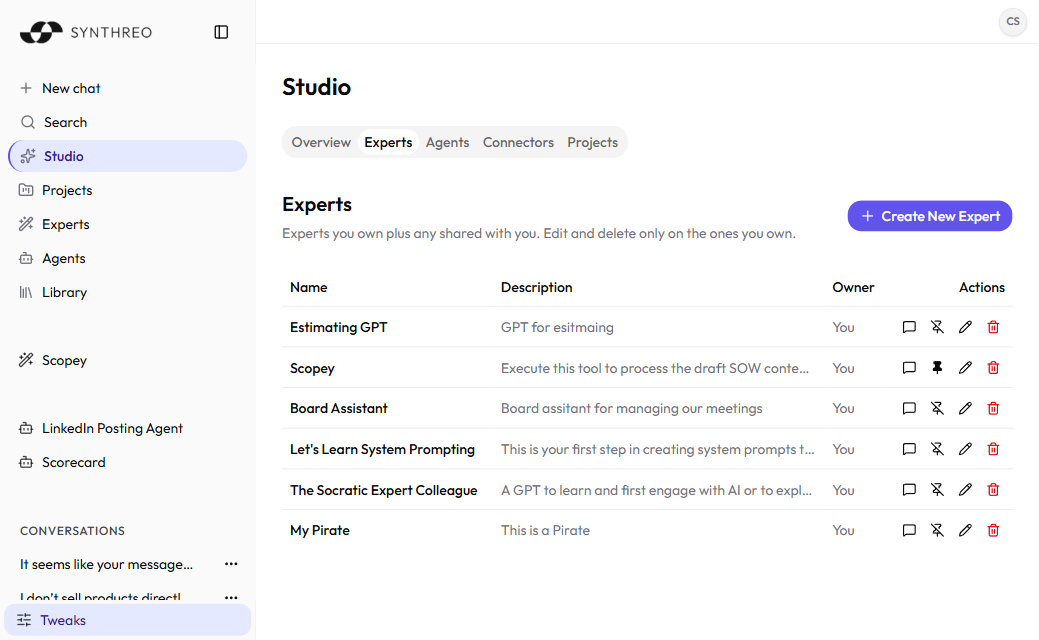
Section titled “Overview”An Expert is a reusable AI assistant you set up once and use again and again. You give it a role through its instructions, optionally feed it your own documents as a knowledge base, and you can wire it up to take actions. Once saved, an Expert appears in Studio’s Experts tab and in the Experts catalog, and you can pin it to the sidebar or open it in any chat.
Experts were previously called Custom GPTs. The behavior is the same idea, with a clearer editor and a few newer capabilities (actions, memory, and self-service sharing).
You build and manage Experts in Studio. Open Studio from the left sidebar and select the Experts tab, then choose Create New Expert.
The Expert editor
Section titled “The Expert editor”The editor opens as a dialog with five tabs:
| Tab | What you set up |
|---|---|
| General | Name, description, instructions, icon, and prompt starters |
| Training | Documents the Expert can draw on as a knowledge base |
| Tools | Actions the Expert can take (see Actions below) |
| Memory | What the Expert remembers for you across conversations |
| Sharing | Who can use the Expert |
General and Tools work from the moment the dialog opens. Training, Memory, and Sharing need an Expert that exists on the server, so before your first save they say “Save the Expert first” instead of showing their controls. Fill in the General tab, select Save, and the dialog stays open with “Expert created - you can now add training documents.”
General
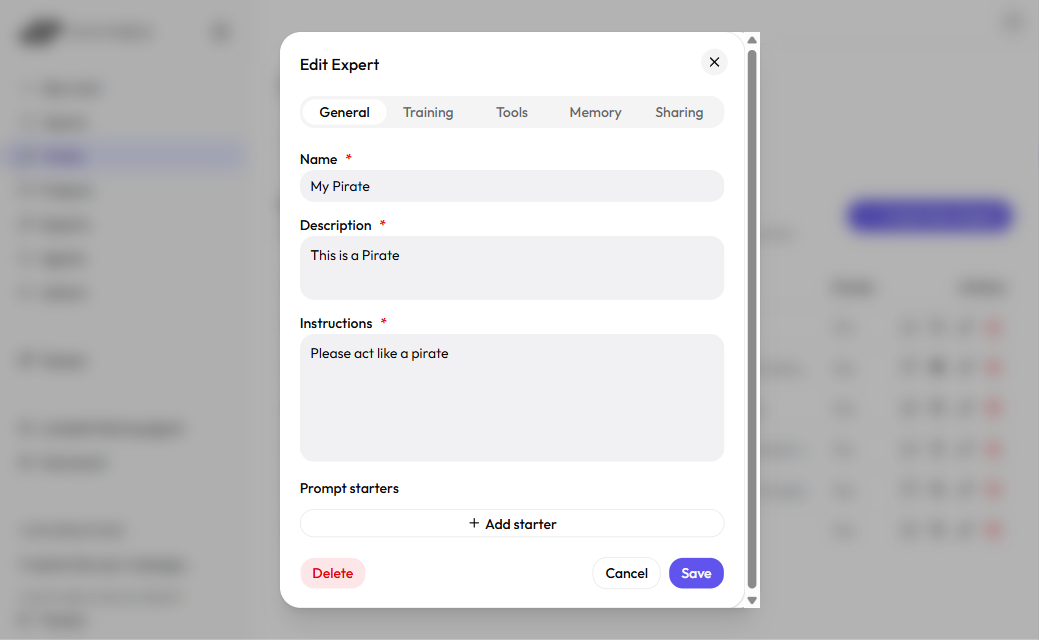
Section titled “General”The General tab holds the three required fields plus an optional icon and prompt starters.
- Name (required) - what the Expert is called, up to 50 characters. This is what you and your colleagues see in lists and the catalog.
- Description (required) - a short summary of what the Expert does, up to 500 characters. It appears under the name on catalog cards.
- Instructions (required) - the system prompt, up to 48,000 characters. This is where you define the Expert’s role, tone, rules, and what it should and should not do. Be specific: a tightly written instruction set is the single biggest factor in how well an Expert performs. If you paste more than the limit, the editor flags it and blocks Save rather than silently trimming your text, so nothing is lost without warning.
- Icon (optional) - a picture for the Expert’s catalog card. This field appears only once the Expert is shared with your whole organization; a private Expert has no catalog card to decorate. See Sharing an Expert.
- Prompt starters (optional) - suggested first messages that appear when someone opens the Expert. Select Add starter for each one, up to 300 characters each. Good starters show people what the Expert is for.
After you fill in the three required fields, select Save. If Save is blocked, the editor switches to the tab holding the problem so you can see the message.
Writing good instructions
Section titled “Writing good instructions”Treat the instructions as the Expert’s job description. A few things that help:
- State the role plainly: “You review vendor contracts for missing liability clauses.”
- List the rules the Expert must follow, and the things it must never do.
- Tell it how to handle questions outside its scope.
- If it has training documents, tell it to answer from those first.
Training
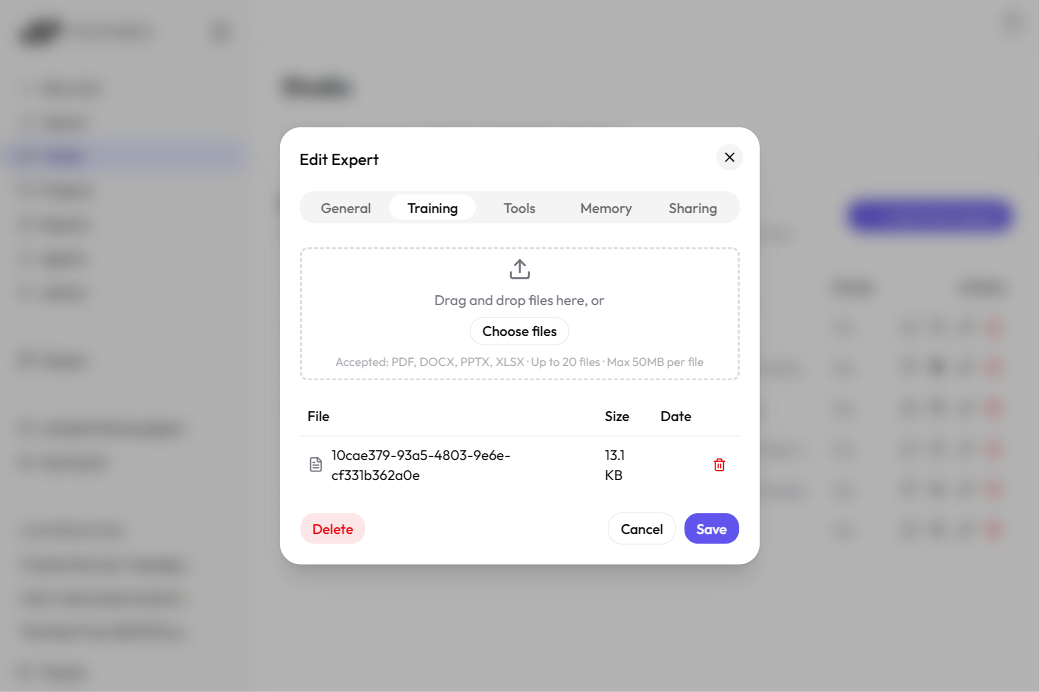
Section titled “Training”The Training tab is where you give an Expert its own knowledge base. Drop documents into the upload area and the Expert can draw on them when it answers.
Accepted file types: PDF, DOCX, PPTX, XLSX, JSON, YAML/YML, and TXT. You can queue up to 20 files at a time, and there is a per-file size limit that the drop zone states in megabytes for your organization.
Each file moves through its own upload queue: it waits as pending, then uploads with a progress bar, then finishes. Large files upload in chunks, three at a time, so a big document does not block the rest of the queue. If one fails you get Retry, and you can cancel an upload that is still running.
Documents that finished uploading are listed below the queue with their File, Size, and Date, each with a delete action. Deleting is permanent and is confirmed first.
Actions
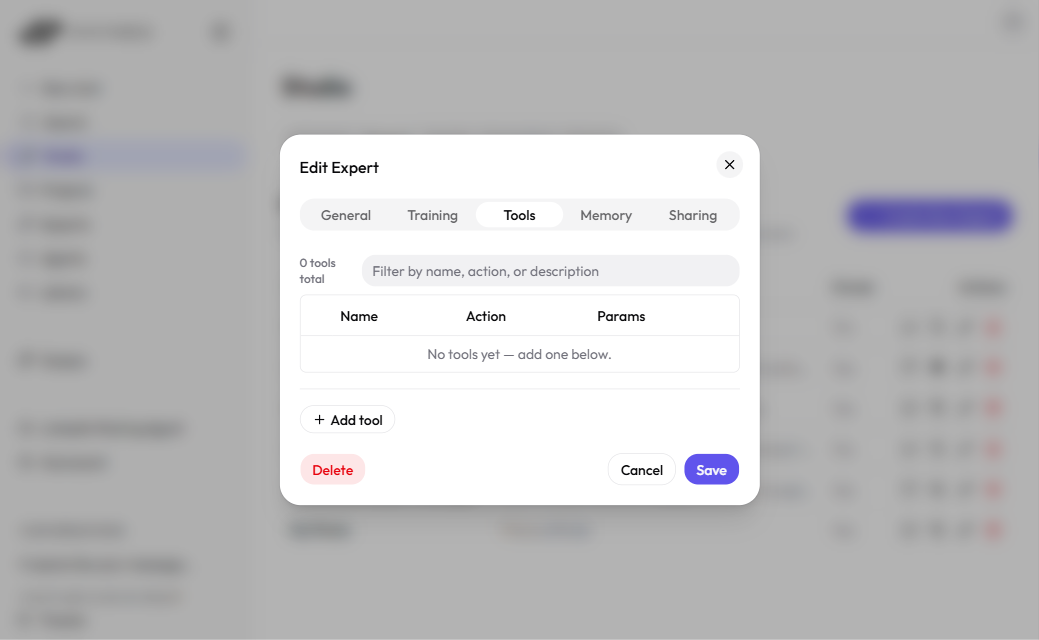
Section titled “Actions”The Tools tab is where you give an Expert actions - calls it can make to do something beyond answering from text, such as looking something up in another system or kicking off an automation. We call these actions in this guide; the editor tab is labeled Tools.
Each action is a collapsible block with these fields:
- Name (required) - what the action is called, up to 64 characters.
- Action (required) - the function name the model calls, for example
get_weather. - Description (required) - what the action does, which is how the model decides when to use it.
- Agent (required) - the Agent that actually runs the work, chosen from the Agents shared with you. If none are shared with you the list reads “No agents available”.
- Parameters - added one at a time with Add parameter. Parameters can nest up to three levels deep for structured inputs.
Actions are backed by Agents, so if you want an Expert to reach into another system, build the Agent in Pylon first and then point the action at it here. See the Pylon Overview.
Removing an action is confirmed first, and the confirmation warns that the parameter definitions are not preserved if you re-add it later.
Memory
Section titled “Memory”The Memory tab shows Assistant memory: “A summary of what this assistant remembers across your conversations.”
Memory is per person and per Expert, so what an Expert remembers for you is separate from what it remembers for a colleague, and separate from your account-wide profile memory. You do not type the summary in; ThreoAI writes it and refreshes it on its own. Until there is something to show, the card reads “No summary yet - this updates overnight once the assistant has remembered something.”
Select Reset assistant memory to clear your own slice for that Expert. The button stays unavailable until the store actually holds something, and it wipes only your memory of that Expert, not anyone else’s. See ThreoAI Memory and Personalization for your account-wide memory.
Sharing
Section titled “Sharing”A new Expert is private to you. The Sharing tab has two controls:
- General access - Private (only you and invited people) or Everyone in your organization. Organization-wide access is granted as Viewer.
- People with access - a list starting with you as Owner, plus anyone you invite. Search for a colleague to add them, then set their role to Viewer or Editor, or choose Remove to revoke access.
Only the owner can view or manage an Expert’s sharing. The panel also warns that recipients can query the Expert’s training documents through conversation with it.
Separately, the owner-only Send a copy to a teammate section hands a colleague their own independent copy through the Send copy action on their row. There is no transfer-ownership control.
For the full walkthrough, see Sharing an Expert.
Frequently Asked Questions
Section titled “Frequently Asked Questions”Why do the Training, Memory, and Sharing tabs tell me to save first? Those three tabs act on an Expert that exists on the server. Fill in the General tab, select Save, and they become usable without closing the dialog. The Tools tab works before the first save.
What is the difference between Description and Instructions? Description is the short blurb people see on the Expert’s card. Instructions are the system prompt the model follows on every turn - they shape the Expert’s behavior and are not shown to users.
Do I have to add training documents? No. Training documents are optional. An Expert with clear instructions and no documents works fine; documents help when you want it grounded in your own material.
Why can’t I see the Icon field? The icon picker appears only once the Expert is shared with your whole organization, because a private Expert has no catalog card. Set General access to Everyone in your organization on the Sharing tab and the field appears on the General tab.
Can an Expert use web search and file uploads like a normal chat? Yes. Conversations with an Expert support the same chat features, including attaching files. See Using an Expert.
Related
Section titled “Related”- Using an Expert - open and chat with an Expert
- Sharing an Expert - control who can use it
- Studio Overview - where Experts, Agents, Capabilities, Projects, and Aliases live
- Pylon Overview - build the Agents that power Expert actions