

Sharing in Canopy
Use Sharing in Canopy to decide who can use which Builder Agents and sensitive data. Set shares, check access by resource, and trace why someone has it.
Overview
Section titled “Overview”Sharing is where you decide who in your organization can use which Builder Agents and sensitive-data entries. It is the single place to grant or block access, see what someone can actually use, and understand why.
Open Sharing from the left navigation in Canopy. The page description reads “Decide who can use which agents, models, and resources”.
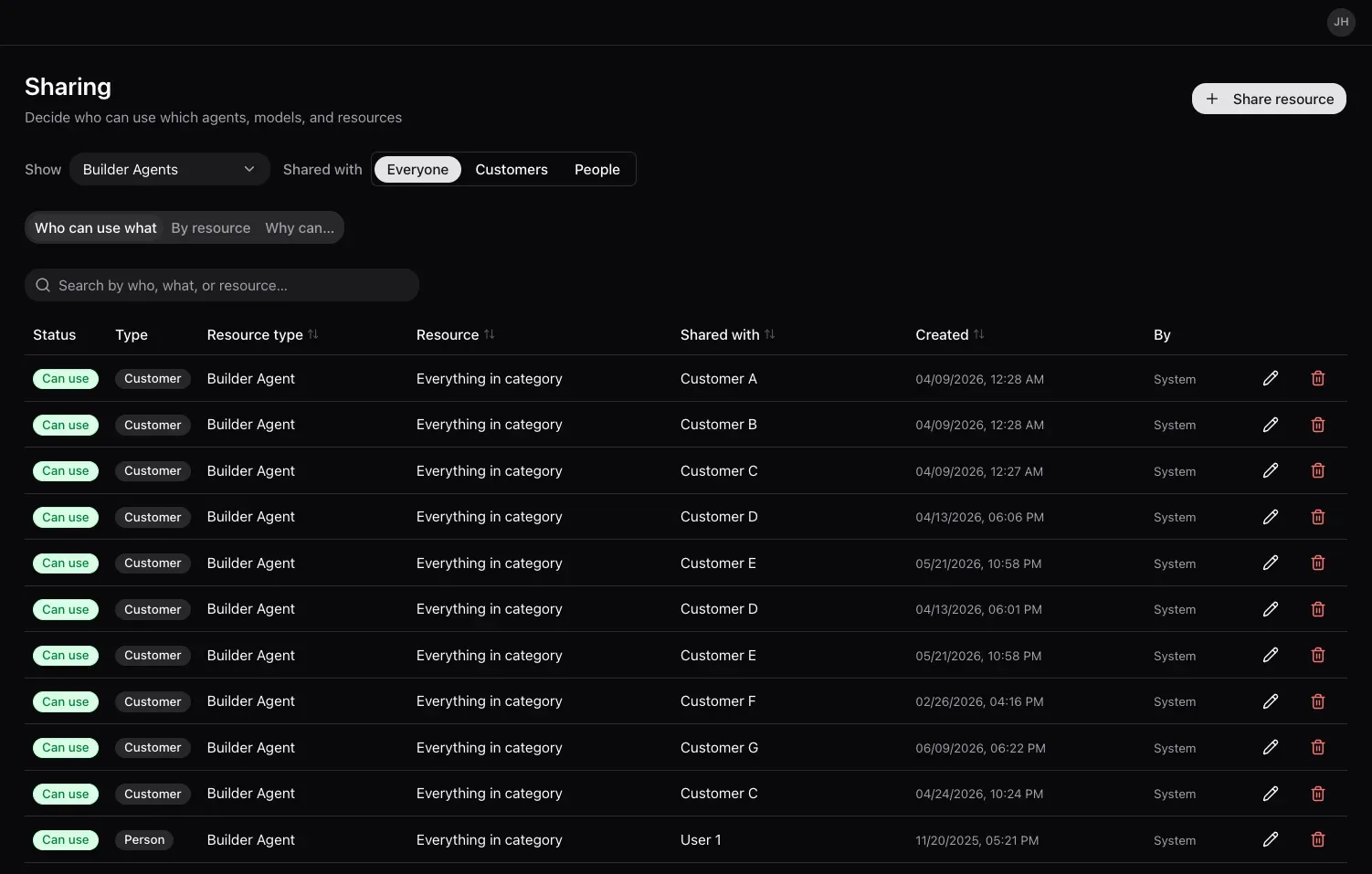
What you can share
Section titled “What you can share”Sharing governs two kinds of resource:
- Builder Agents - the agents your organization has built.
- Sensitive Data - the sensitive-data entries defined in Platform Admin.
Four things are deliberately not shared from this screen:
| Not here | Where it actually lives |
|---|---|
| Experts and Threo contexts | Shared inside ThreoAI itself, per person as Viewer or Editor, or across the whole organization. See Sharing an Expert. |
| AI models | The Pylon and Threo toggles on the AI Models tab in Platform Admin. |
| Skills | The Skill Catalog tab in Platform Admin. Each skill has its own sharing badge - Everyone or Restricted - which opens the share panel for that skill. |
| Connectors | The Shared badge on each row of the MCP Catalog tab in Platform Admin, which opens that connector’s own share panel. |
Skill and connector sharing still writes a share underneath, but it is authored on those tabs, not here.
At the top of the page, two controls filter the view:
- Show - All, Builder Agents, or Sensitive Data. Changing it swaps the dataset, and the tables return to their first page.
- Shared with - Everyone, Customers, or People. This one appears only on the Who can use what tab.
The three tabs
Section titled “The three tabs”| Tab | What it answers |
|---|---|
| Who can use what | The shares - grant or block access for customers and people to specific resources |
| By resource | The effective result - for a given agent or sensitive-data entry, who can use it |
| Why can… | The trace - for one person or customer and one resource, the shares that decide the outcome |
Prerequisites
Section titled “Prerequisites”- Access to Canopy with an administrator role.
- The Builder Agents or sensitive-data entries you want to share already exist in your organization.
Grant or block access
Section titled “Grant or block access”Step 1: Open Who can use what
Section titled “Step 1: Open Who can use what”Select Sharing, then the Who can use what tab. This lists the current shares in one table:
| Column | What it shows |
|---|---|
| Status | Can use or Blocked |
| Type | Customer or Person |
| Resource type | Builder Agent or Sensitive Data |
| Resource | The specific item, or Everything in category for a whole-type share |
| Shared with | The named customer or person, or Everyone (all customers) / Everyone (all users) |
| Created and By | When the share was made, and by whom |
Each row has Edit and Remove actions. With nothing shared yet the table reads “Nothing is shared in this category yet.” You will see that most often right after switching Show to a resource type you have not shared anything in - it is an empty category, not a failure.
Step 2: Share a resource
Section titled “Step 2: Share a resource”Select Share resource and fill in the dialog:
- Share with - a Customer or a Person.
- Resource type - Builder Agents or Sensitive Data. Required.
- Status - Can use to grant access, or Blocked to deny it. Required.
- Which builder agent? or Which sensitive data? - the field is named after the resource type you picked. Choose a specific item, or leave it unset to cover everything in the chosen type.
- Which customer? or Which person? - the audience. Leaving it unset shares with everyone in that category.
The dialog shows an After saving: preview of what the share will do before you commit it. Save it; the share takes effect for the people or customers it names.
Check effective access
Section titled “Check effective access”Open the By resource tab to see access from the resource’s side.
Choose Customer Rules or User Rules at the top, then work across three linked tables:
- Entities - the agents or sensitive-data entries in the selected category, each showing how much of your audience can reach it.
- Rules - the shares that apply.
- Customers or Users - the audience, each showing how many entities they can reach.
Hovering a coverage cell explains it in words, for example “Access granted to 3 of 12 customers”. Use this tab to confirm a change did what you expected.
Trace a decision
Section titled “Trace a decision”Open the Why can… tab when someone reports they cannot use something they expect to, or can use something they should not. Its own description says it best: “Pick a person (or customer) and a resource. We’ll show every share that affects whether they can use it.”
- Choose A person or A customer.
- Pick the person or customer.
- Pick the resource.
Canopy returns one of three verdicts:
| Verdict | Meaning |
|---|---|
| can use | At least one share allows it and none blocks it |
| is blocked from | A share blocks it |
| has no explicit share for | No share matches this combination, so the platform default for that resource type applies |
Below the verdict, every contributing share is listed and badged Allows or Blocks, with the reason in plain language.
Frequently Asked Questions
Section titled “Frequently Asked Questions”What happened to Access Rules? Access Rules is now Sharing. The link redirects automatically, and the shares you set previously carry over.
What can I share? Builder Agents and Sensitive Data. Experts, AI models, skills, and connectors are all governed elsewhere - see What you can share.
Where did Threo contexts go? Expert and context sharing moved into ThreoAI, where you share an Expert per person as Viewer or Editor, or with your whole organization. See Sharing an Expert.
A user cannot use an agent they should have. How do I find out why? Open the Why can… tab, select the user and the agent, and Canopy lists the deciding shares. If the verdict is is blocked from, look for a Blocks line - a block beats an allow.
A resource type shows as Unknown. What is it? An old share whose resource type has since been retired from this screen. It cannot be edited here; remove it if it is no longer needed.
Related
Section titled “Related”- Platform Admin - turn models on or off and manage the MCP and skill catalogs
- Sharing an Expert - where Expert and context sharing now lives
- Managing User Permissions - roles and app permissions per user
- Canopy Overview - the admin portal at a glance
- Sign In As and Delegate Login - access a child customer’s apps