

MCP Connector Catalog
Register the MCP servers and REST APIs your organization can install as Connectors in ThreoAI and Pylon. A step-by-step guide to Canopy's New connector wizard.
Overview
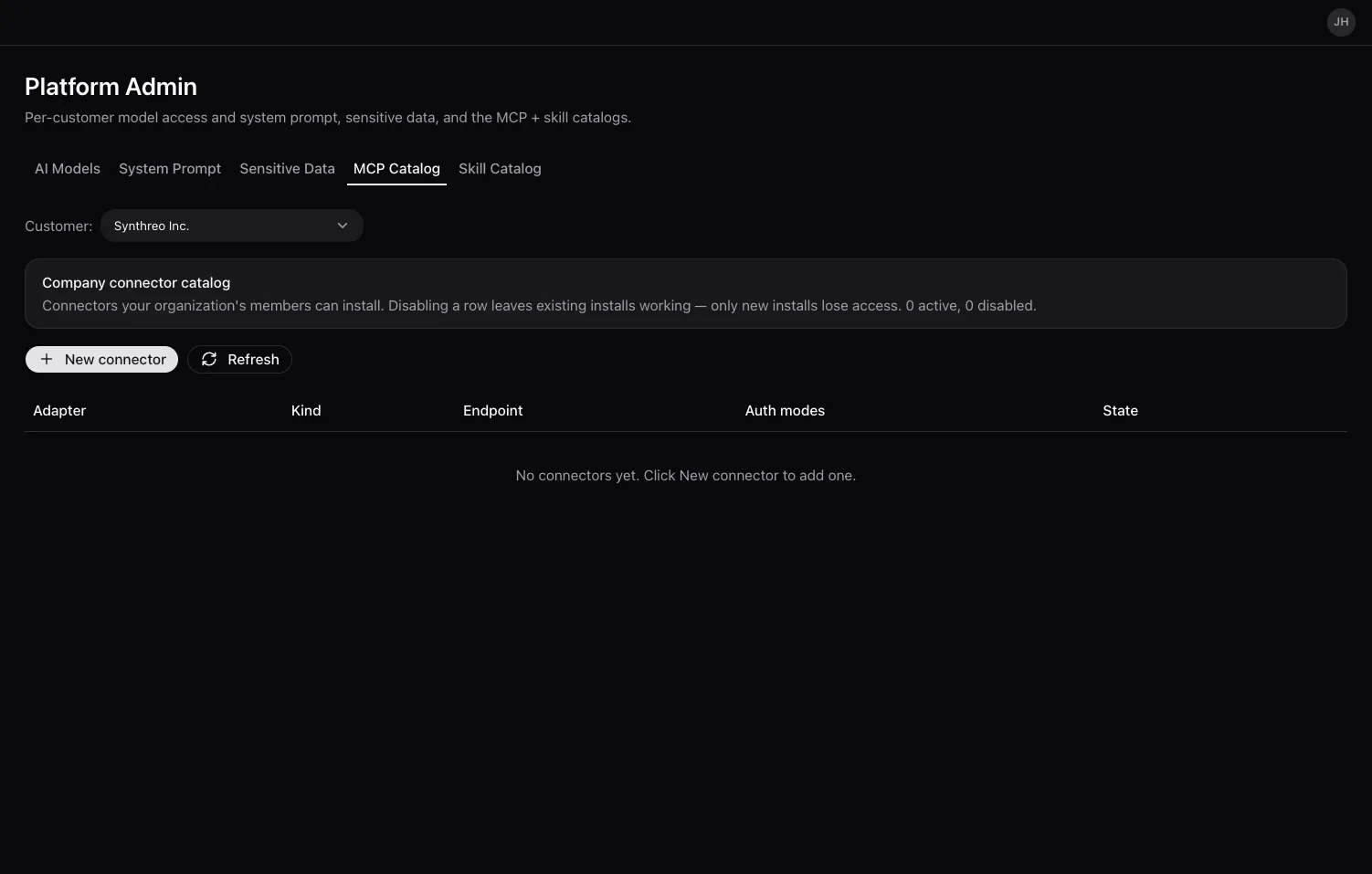
Section titled “Overview”The MCP Catalog tab in Platform Admin is your company connector catalog: the MCP servers and REST APIs your organization’s members can install as Connectors. Each row shows the adapter, type, hosting, roles, categories, endpoint, auth modes, its on/off state and who it is shared with.
Two things worth knowing before you add one:
- Scope. A catalog entry belongs either to the Synthreo-wide global catalog, which only Synthreo superusers manage from AI Configuration, or to a specific customer’s catalog. When you add an entry from Platform Admin it is scoped to the company you are acting as.
- Disabling is a kill switch, not a pause. Connections bound to the entry stop working within about five minutes, and new installs cannot pick it. It is not “existing installs keep working”. Disabling is still reversible - the entry is not deleted, and turning it back on restores it - but plan it as an outage.
Open Platform Admin in Canopy, select the MCP Catalog tab, then select New connector to open the wizard.
Step 1: Pick what you are connecting
Section titled “Step 1: Pick what you are connecting”The wizard opens on Add an MCP with three cards:
| Card | Use it when |
|---|---|
| Connect existing (EXTERNAL) | You already have an MCP server URL. Synthreo consumes it. |
| Build & host (HOSTED) | You have an OpenAPI spec, a .mcpb bundle, or flows, and want Synthreo to run the server. |
| Connect a REST API (REST) | A plain REST or HTTP API called directly - not an MCP server. If you have a spec and want tools generated from it, use Build & host instead. |
The rest of this page follows Connect existing and Connect a REST API, which are the two lanes an MSP administrator uses most.
Step 2: Details (Connect existing only)
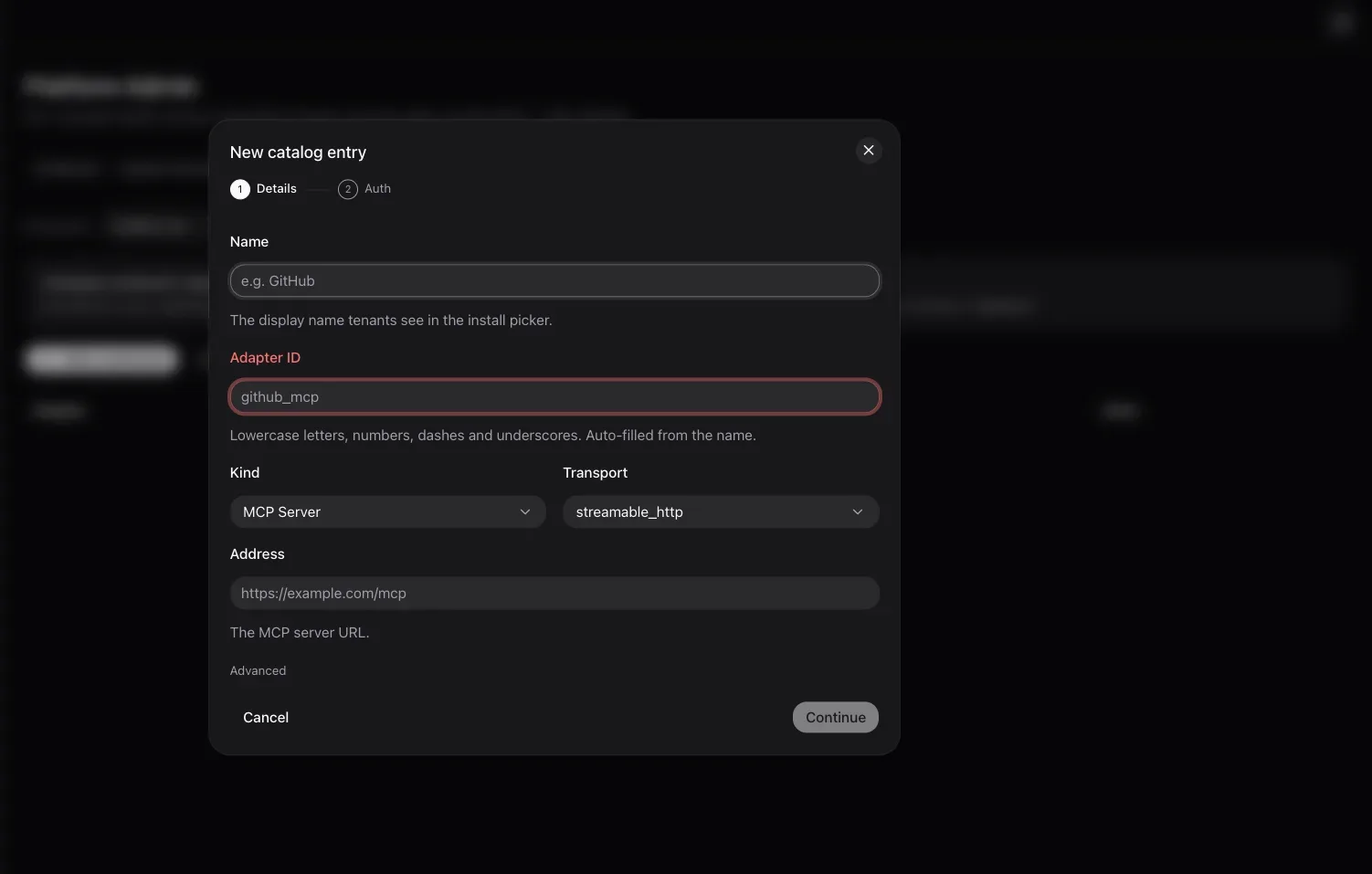
Section titled “Step 2: Details (Connect existing only)”Connect existing is discovery-first, so it asks for the minimum and detects the rest:
| Field | What to enter |
|---|---|
| Name | The display name tenants see in the install picker (for example, “My Linear Server”). |
| MCP server URL | The server URL, https:// only (for example, https://mcp.example.com/mcp). |
| Description | What the connector does. Shown to tenants browsing the catalog. |
Beneath the Name field, the wizard shows the Catalog id it derived from the name. Use the pencil to pin a different one. The catalog id cannot be changed after the entry is created, so choose it now if you care about it.
Select Continue.
Step 3: Checking server (Connect existing only)
Section titled “Step 3: Checking server (Connect existing only)”Canopy asks the server how it authenticates and advances on its own when the walk settles. Nothing to fill in.
A failed probe is never a dead end: the wizard still moves on to Configure, with the auth fields blank and fully editable so you can enter them by hand.
Step 4: Configure
Section titled “Step 4: Configure”This is the one screen where the connector is actually configured. On Connect existing everything the probe detected is already filled in - adjust it if needed. On Connect a REST API you land here directly, and the screen is titled Connect a REST API.
| Field | What to enter |
|---|---|
| Display name | Required. |
| Description | Shown to tenants browsing the catalog. Leave it blank and the entry appears with no explanation. |
| Adapter ID | The catalog slug. Read-only when you are editing an existing entry. |
| MCP server URL / REST base URL | Required, https:// only. A REST base URL cannot contain a {variable} placeholder. |
| OpenAPI URL | REST only, optional. A reference link to the API docs - it is not imported. To turn a spec into tools, use Build & host. |
| Transport | MCP only: Streamable HTTP, Server-Sent Events (SSE), or stdio. |
| Auth method | One choice, not a set - see below. |
Auth method
Section titled “Auth method”Pick one:
| Auth method | Meaning |
|---|---|
| No auth required | The server is open. |
| API key header | The key travels in a header. |
| Per-user OAuth | Each person authorizes with their own account. |
| Shared OAuth | One OAuth credential is shared by the whole company. |
| Client credentials (no sign-in) | Unattended: no person is present when the connector runs. |
The rest of the screen changes to match what you picked.
API key header
Section titled “API key header”| Field | What to enter |
|---|---|
| Who provides the API key? | Shared key for the whole org (an admin sets it up) - one admin-managed key backs the whole company. Each user provides their own key - every connection stays personal. |
| API key header name | For example Authorization. |
| API key scheme (optional) | The prefix only, for example Bearer. |
OAuth metadata
Section titled “OAuth metadata”Shown whenever an OAuth method is selected.
| Field | What to enter |
|---|---|
| Authorization server URL | Required, https://. The entry is rejected without it. |
| Token endpoint URL | Optional; must be a valid https:// URL if you set it. |
| Default scopes | Space- or comma-separated. |
| Server supports Dynamic Client Registration (DCR) | Whether the server can register an OAuth client for itself. |
For Per-user OAuth with DCR on, one more question appears: Can several people connect their own accounts to this server? There is no preselected answer, and it blocks Next until you answer, deliberately - a silent default here is what caused second users to be refused at connect time. Answer Yes unless the server ties its app registration to a single account.
Some vendors cannot self-register a client. For those the DCR box is forced off and locked. The known no-DCR adapters are: github, slack, hubspot, asana, ninjaone, n-central, scalepad, halopsa, hudu and liongard.
Pre-issued OAuth client
Section titled “Pre-issued OAuth client”Shown for a customer-scoped entry using an OAuth method with DCR off - the server cannot register a client, so you supply one.
| Field | What to enter |
|---|---|
| Client ID | The client ID issued by the provider. |
| Client secret | Stored securely and never shown on the catalog entry. On edit, leave it blank to keep the saved secret. |
| Redirect URIs | One per line. Each must be the product’s canonical callback, https://<product-host>/connectors/oauth/callback. On edit, leave it blank to keep the saved list. |
| Token endpoint auth method | client_secret_post, client_secret_basic, or none. |
A confidential client is always per-customer. A global catalog entry never collects one; each customer supplies their own when they need it.
Advanced (webhooks, surface)
Section titled “Advanced (webhooks, surface)”Collapsed by default on the Connect existing lane, and holding two settings that most connectors never need:
- Webhooks / triggers - only if the server must receive events pushed in from outside, or notify other systems.
- Surface - which Synthreo products the entry appears in for tenants to install: Threo only, Pylon only, Both surfaces, or Hidden (internal only).
If the collapsed section is holding Next disabled, the toggle says so in amber next to the label.
Step 5: Review & finish
Section titled “Step 5: Review & finish”The last screen summarizes the entry. Select Finish.
Throughout the wizard the footer is Cancel, Back, and one primary button: Continue on the Details screen, Finish on Review, and Next everywhere else. A disabled primary button always means a required field on the current screen is unanswered.
Worked examples
Section titled “Worked examples”A shared-API-key MCP server. Card = Connect existing. Name it, paste the server URL, add a description, Continue. Let the probe run. On Configure, set Auth method to API key header, choose Shared key for the whole org, and set the header name (for example Authorization) and scheme (for example Bearer). Next, then Finish. Members install it and it authenticates with the shared key.
An OAuth server that supports DCR. Card = Connect existing. On Configure, choose Per-user OAuth, confirm the Authorization server URL, and leave Server supports Dynamic Client Registration (DCR) ticked. Answer the “Can several people connect their own accounts?” question - Yes for almost every server. No client ID or secret is needed; the server registers a client itself.
A no-DCR OAuth vendor (for example GitHub) in a customer catalog. Card = Connect existing. On Configure, choose an OAuth method and confirm the Authorization server URL. Because github is a known no-DCR adapter, the DCR box is locked off and the Pre-issued OAuth client block appears: paste the Client ID and Client secret, list the Redirect URIs (the product’s canonical /connectors/oauth/callback), and pick the Token endpoint auth method. Finish to register the client alongside the catalog entry.
A plain REST API. Card = Connect a REST API. You go straight to Configure: set the REST base URL, optionally add a reference OpenAPI URL, and pick an auth method. There is no transport for REST, and the base URL cannot contain a {variable} placeholder.
Managing entries
Section titled “Managing entries”From the MCP Catalog table you can:
- Edit (the pencil) - reopens the wizard on the Configure screen with the entry’s values loaded. The Adapter ID is read-only; a blank Client secret or Redirect URIs field keeps the saved value. Editing a disabled entry does not re-enable it.
- Disable / enable - the Catalog entry switch. Re-enabling is immediate; disabling asks you to confirm and warns that connections bound to this entry stop working within about five minutes. Connections using a different active entry for the same connector are unaffected.
- Share - the Shared badge opens the share panel: Everyone, or a restricted set of people. Off means there is no shared install to share yet.
- Delete (the bin) - permanent. If the connector is still installed by members, deletion is blocked and Canopy tells you to disable it instead.
A connector marked Locked is config-locked; the badge’s popover explains why and who locked it, and it must be unlocked before it can be deleted.
Related
Section titled “Related”- Platform Admin - the MCP Catalog tab in context
- Connectors - the end-user side, where members install and use connectors