

SSO and Auto-Provisioning
Register your SSO org identifiers in Canopy so matching users are provisioned automatically, enforce SSO sign-in, and manage provisioned-user and deny lists.
Overview
Section titled “Overview”Auto-provisioning registers a customer’s single sign-on (SSO) organization identifier so that matching users are created in Synthreo automatically the first time they sign in. You can also enforce SSO, so matching users must sign in through their provider rather than with a password.
These controls appear in two places, and work the same in both:
- Your organization - in Settings, inside the Authentication card, under “SSO & auto-provisioning” and “SSO access”.
- A child customer - on the customer’s Authentication tab, which carries both. See Adding a New Customer.
Provisioning rules
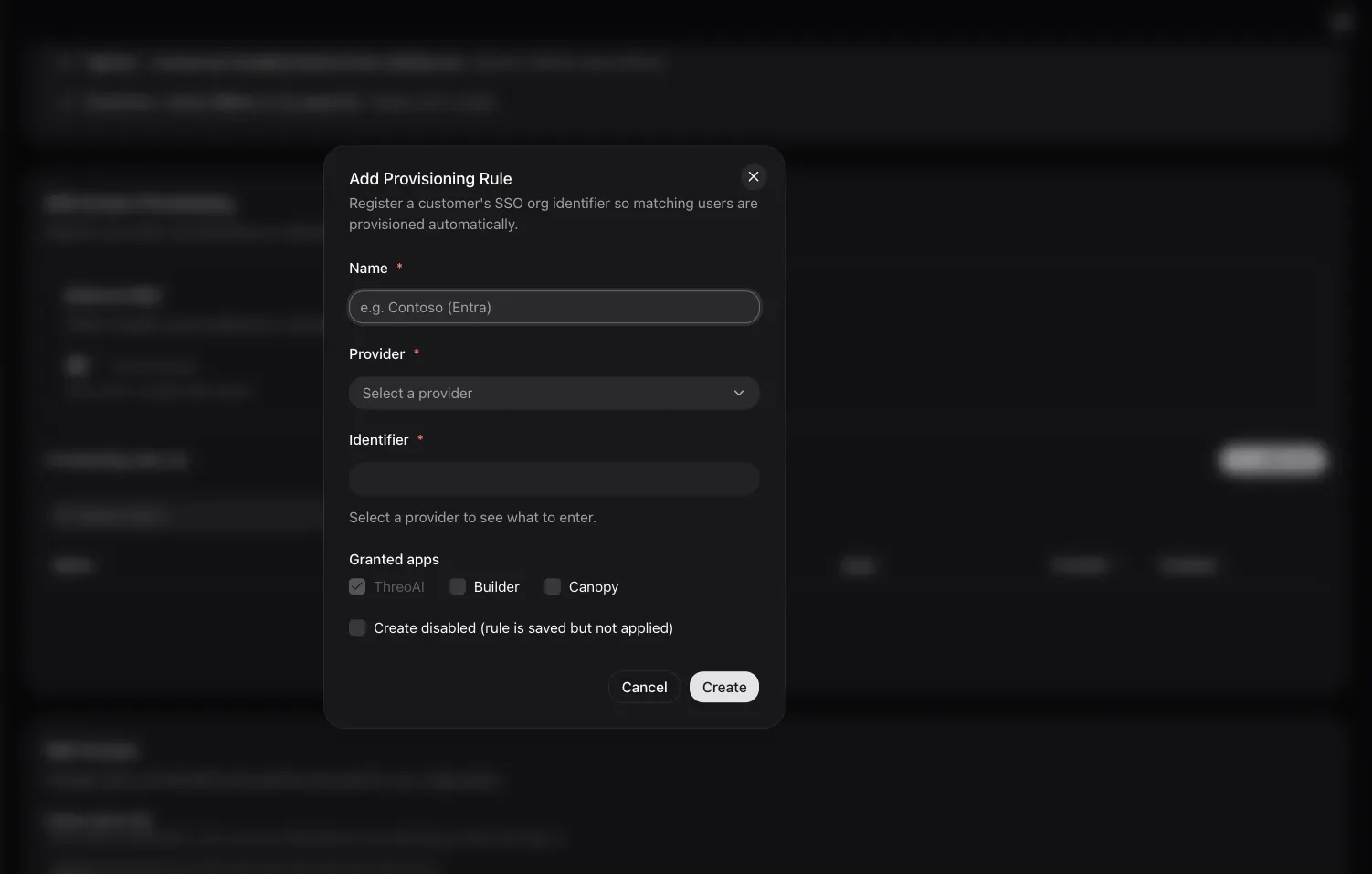
Section titled “Provisioning rules”A provisioning rule maps an SSO organization to your Synthreo tenant. Select Add rule to open Add Provisioning Rule, which describes itself as “Register a customer’s SSO org identifier so matching users are provisioned automatically.”
| Field | What to enter |
|---|---|
| Name | Required. A label for the rule, for example “Contoso (Entra)”. |
| Provider | Required. Pick from the providers listed. The list is served by the platform and may change over time. |
| Identifier | Required. The provider’s organization identifier. For Microsoft Entra this is the Directory (tenant) ID - the GUID shown under Microsoft Entra ID in the Azure portal, for example 00000000-0000-0000-0000-000000000000. The field carries the hint and example for whichever provider you picked, and rejects a value that does not match that provider’s expected format. |
| Granted apps | Which apps provisioned users receive. ThreoAI is checked and locked - every provisioned user gets it. Builder and Canopy are the optional checkboxes. |
| Create disabled | ”Create disabled (rule is saved but not applied)”. Use this to stage a rule before it takes effect. |
Select Create to save it. Rules appear in the table with their Name, Provider, Identifier, Apps, Created, and an Enabled switch, plus edit and delete actions. With none yet, the table reads “No provisioning rules yet.”
If the same identifier is already registered for this customer, the rule is refused with “This identifier is already registered for this customer.”
Add rule is unavailable while the provider list is still loading, and is disabled outright with the tooltip “No SSO providers are configured” when the platform offers none.
Enforcing SSO
Section titled “Enforcing SSO”The Enforce SSO toggle stays off, and cannot be turned on, until at least one provisioning rule exists - the control reads “Add a rule to enable enforcement.” until then. Once a rule is in place, turn it on so that users matching a rule must sign in through their SSO provider rather than with a password.
Enforcement is a customer-wide posture, not a per-rule one: the toggle sits above the rules table and applies to everyone a rule matches.
Disabling a rule without deleting it
Section titled “Disabling a rule without deleting it”Each row’s Enabled switch turns a rule off in place. A disabled rule stops provisioning new arrivals but stays on the list, which is the safer move when you are unsure. Deleting is permanent, and its confirmation says what it costs: “Users will no longer be auto-provisioned from this identifier.”
SSO access
Section titled “SSO access”The SSO access view manages the users that auto-provisioning has created and the ones you want to keep out:
- Active users - users auto-provisioned for this organization, with their email, provider, identifier, and when they were provisioned. Deny a user to block re-provisioning on their next sign-in. With none, the table reads “No active provisioned users.”
- Denied emails - the block list, with the email, when it was blocked, and why. Block email adds an address, and it does not require the person to have been provisioned first. Allow re-enables provisioning on that person’s next sign-in.
Related
Section titled “Related”- Settings - where your organization’s SSO settings live
- Adding a New Customer - the per-customer Authentication tab
- Managing Permissions - roles and access for provisioned users