

Wingtip My Tasks
Use My Tasks in Wingtip to run jobs on a schedule - see every task you own, fix the ones that need you, and switch on automations from your company catalog.
What My Tasks is
Section titled “What My Tasks is”My Tasks is where the jobs you give Wingtip keep running after the chat ends. Give Wingtip a job once - “every weekday at 8:00, summarize yesterday’s email” - and it runs on that schedule, or whenever you press Run now.
The page holds two kinds of task:
| Your tasks | Company tasks | |
|---|---|---|
| Where they come from | Your own personal agents and DAGs. They appear here automatically - you don’t add them. | Automations your company publishes. You switch them on yourself from the Company catalog. |
| Whose accounts they use | Yours | Yours - you connect your own accounts when you switch one on. A step the publisher pinned to a shared account uses that account instead |
| Who changes them | You, in Wingtip or Pylon | Whoever publishes them in Pylon |
The Company catalog lists company automations only. Your own tasks never appear there.
An agent or DAG counts as one of your tasks when it is personal to you and runs on a schedule, when you start it, or from a webhook. Automations that only run from another automation, an incoming email, a chat, a Teams channel, or a web embed are not listed - they are parts of something else rather than jobs of their own.
Availability
Section titled “Availability”My Tasks is in Preview and is turned on per organization, on top of Wingtip. When it is on, a My tasks row appears in the Wingtip sidebar after Studio, marked Preview. The page itself is headed Scheduled tasks. If you don’t see the row, ask your administrator or MSP.
Create your first task
Section titled “Create your first task”1. Open My Tasks
Section titled “1. Open My Tasks”Select My tasks in the sidebar. The page opens with a short guide headed Meet My tasks. Hide puts it away; Tutorial, beside the Tasks and Deleted tabs, brings it back.
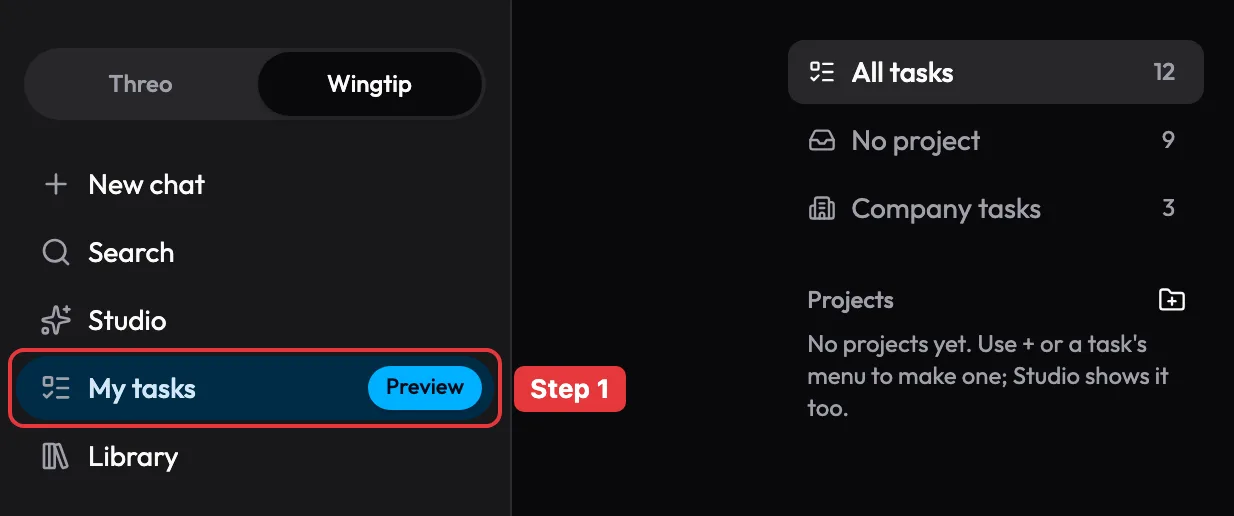
Highlighted: the My tasks row in the Wingtip sidebar.
2. Connect the accounts the task needs
Section titled “2. Connect the accounts the task needs”The guide’s example task reads your email, so the first card is a Connect Microsoft 365 switch. Turn it on and sign in. If it already says On, you’re set.
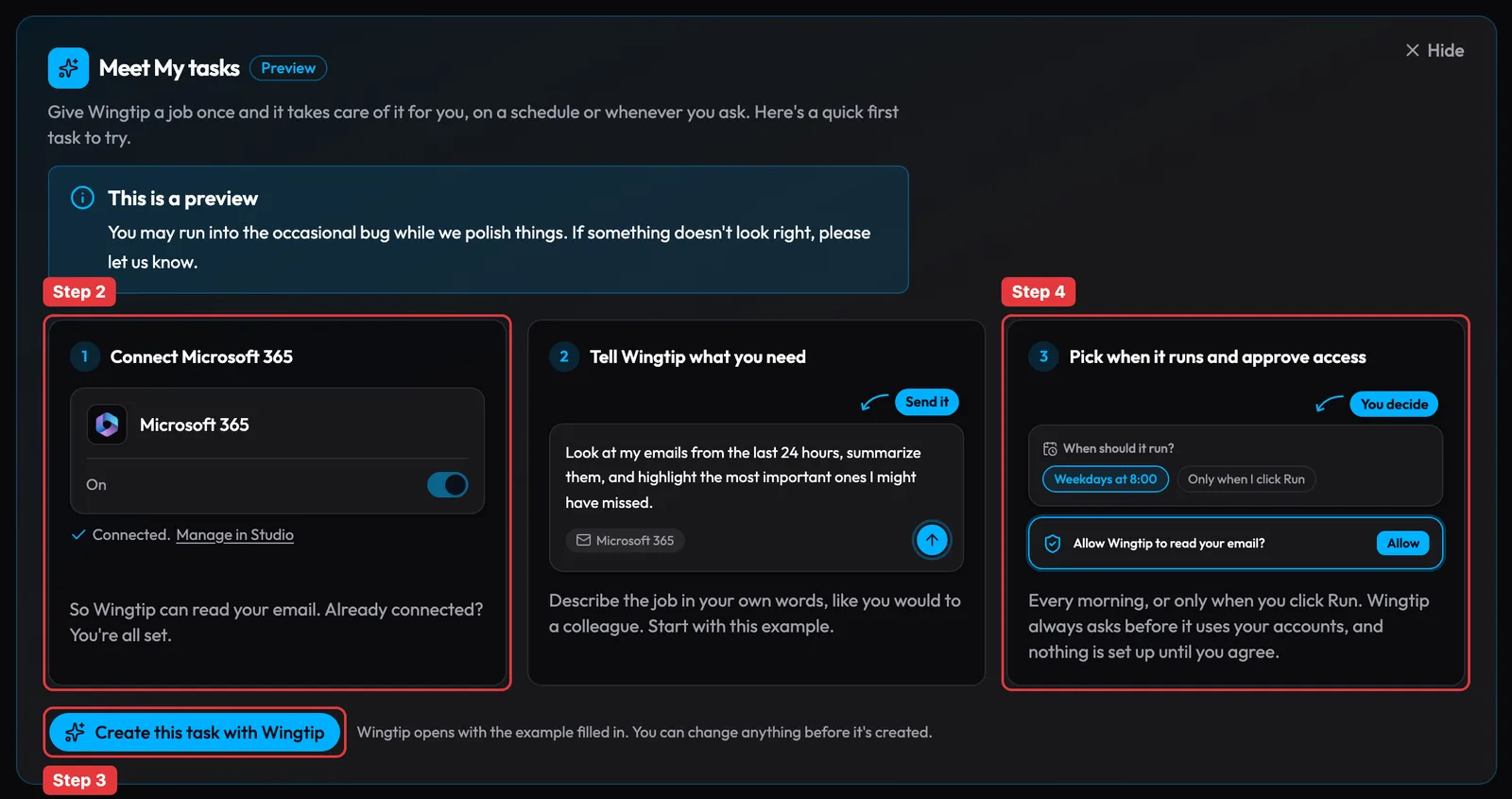
Highlighted: the Connect Microsoft 365 card (Step 2), Create this task with Wingtip (Step 3), and the schedule and access card (Step 4).
3. Hand the job to Wingtip
Section titled “3. Hand the job to Wingtip”Select Create this task with Wingtip. Wingtip opens with the example filled in: “Look at my emails from the last 24 hours, summarize them, and highlight the most important ones I might have missed.” Change anything you like, then send it.
For a job of your own instead, select New task in the page header, describe what it should do and when, and select Continue in Wingtip. The idea cards at the bottom of the page, such as Morning inbox brief or Meeting prep notes, start the same way.
4. Choose when it runs and approve access
Section titled “4. Choose when it runs and approve access”Wingtip asks when the task should run - on a schedule, or only when you press Run now. On the default Manual approval posture it also asks before it creates the task or uses any of your accounts, and nothing is set up until you agree. On Bypass permissions, or for an action you approved with Accept always, it does not stop to ask - see Allowing and denying actions.
5. Check it in My Tasks
Section titled “5. Check it in My Tasks”Back on My tasks, the new task is in your list. A scheduled task also shows its schedule and next run. Press Run now to try it straight away: Wingtip opens and shows the run as it happens.
Read your task list
Section titled “Read your task list”
Highlighted: the List / Cards switch, Task permissions, Catalog, New task, and the Task settings menu, which holds sorting.
Your tasks are grouped by what they need from you: Needs your attention, Checking, Running fine, and Paused. Each task shows one status line and one button for the next step. The common ones:
| You see | What it means | What to do |
|---|---|---|
| ”<Service> isn’t connected, so it can’t run.” | The task uses an account you haven’t connected | Connect <Service> |
| “Your <Service> sign-in expired…” | A connected account needs you to sign in again | Fix, then sign in |
| ”Skipped …: … (not allowed yet).” | The task tried something it isn’t allowed to do on its own | Fix, then Allow - or Not now |
| ”Last run failed … See Runs for what went wrong.” | The last run hit an error | Open the task’s Runs tab, or Ask Wingtip |
| ”Paused. It won’t run until you resume it.” | You paused it | Resume |
| ”Did everything …” | The last run finished | Nothing |
Dismiss clears a warning from the list without changing the task.
In List view, Columns picks what you see. Task settings sorts by Next run, Name, or Last run.
Manage a task
Section titled “Manage a task”Select a task to open it.
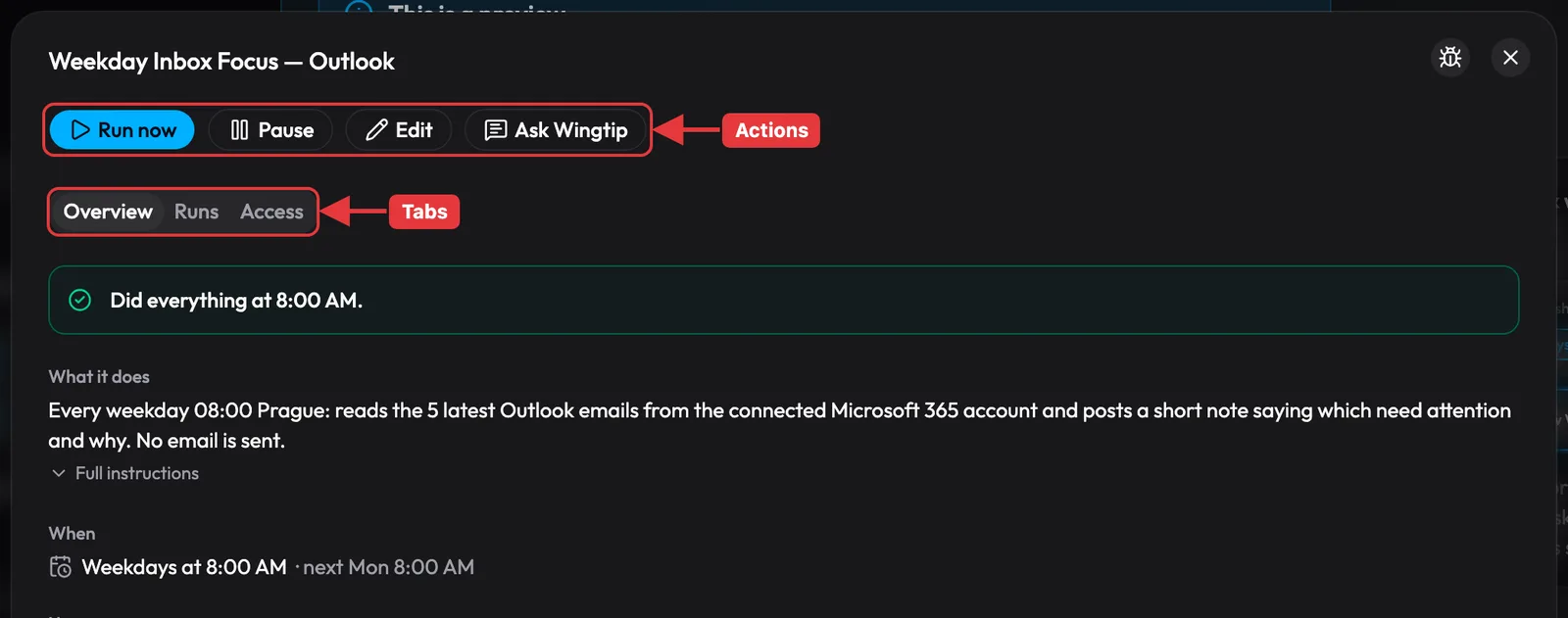
Highlighted: the task’s actions and its tabs.
- Run now - run it once, right now. Wingtip opens and shows the run.
- Pause / Resume - stop and restart the schedule.
- Edit - change an agent task. DAG tasks show Edit in Pylon instead, which opens the canvas in a new tab.
- Ask Wingtip - open a Wingtip chat about this task, for example to change what it does.
- Runs - every run, whether you started it or the schedule did, and See what it did.
- Access (agent tasks only) - how much the task may do without asking: Ask me every time, Allow reading, ask before changes (recommended), or Allow everything this task needs.
Task permissions in the page header shows every answer you’ve given in one place. An answer counts for all of your tasks that do the same thing.
Organize tasks into folders
Section titled “Organize tasks into folders”The left rail lists All tasks, No project, Company tasks, and your own Pylon projects. Folders here are Pylon projects: a folder you make with + also appears in Pylon Studio. Drag a task onto a folder, or use Move to folder in its menu. Rename or delete folders in Pylon.
Delete and restore
Section titled “Delete and restore”Delete turns a task off and moves it to the Deleted tab. A deleted task is permanently removed, with all its data, 30 days after you delete it. Until then, Restore brings it back as it was. Delete forever removes it at once, everywhere it appears - Pylon Studio included - and can’t be undone.
Use a company task
Section titled “Use a company task”Switch one on
Section titled “Switch one on”-
Select Catalog in the page header, between Create with Wingtip and New task (or Browse catalog under From your company). In a narrower window the button shows only its store icon.

Highlighted: the Catalog button.
-
Find the automation and select Enable. If it says Already enabled for you, it’s already in your list.
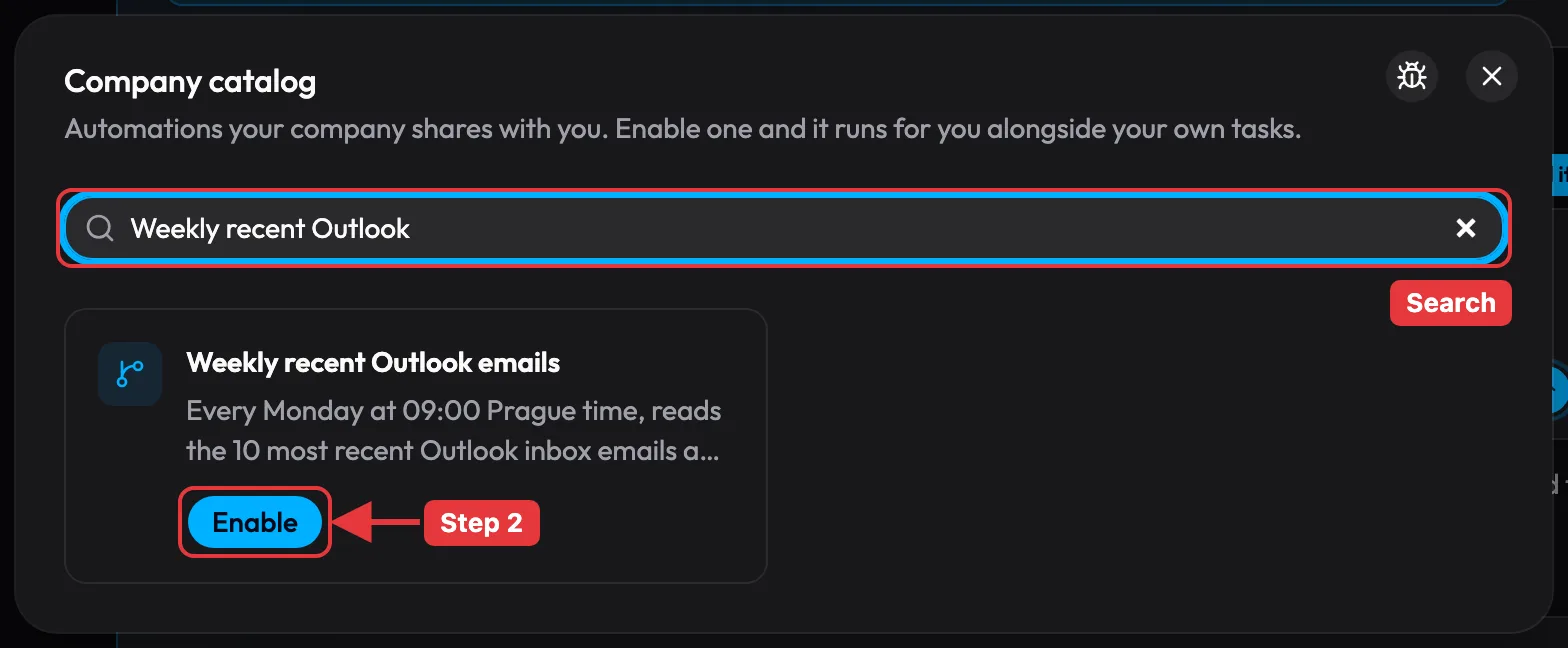
Highlighted: the catalog’s search box, and Enable on an automation.
-
Review what it does: its trigger, the accounts it uses (yours, unless the publisher pinned a step to a shared account), and where it sends results.
-
Pick a connection for every service that needs your account - connect one there if you haven’t - and select Enable task.
The task appears under From your company and runs for you alongside your own tasks.
What its badge means
Section titled “What its badge means”| Badge | What to do |
|---|---|
| Ready | Nothing - it runs on schedule |
| Connect services | Open it and select Finish setup |
| Review changes | The publisher changed what it does. Open it, review the changes, and approve them |
| Waiting for rollout | Nothing - your company is releasing a new version gradually |
| Held or Cannot run | Your company paused it or took it offline. Ask whoever publishes it |
If the publisher allows it, you can give a company task your own schedule under Schedule. Use company schedule switches back.
Switch one off
Section titled “Switch one off”Open the task and select Unsubscribe. It stops running for you, and stays in the catalog if you want it back later.
For administrators: offer an automation to your company
Section titled “For administrators: offer an automation to your company”Company automations are published from Pylon. Open the automation’s settings and expand Optional subscriptions:
- Show in everyone’s My Tasks - lists it in the Company catalog so anyone in your company can switch it on for themselves. This shares it with your whole company. Turning it off takes it out of My Tasks and leaves sharing as it is. The automation must be enabled, with a live version, first.
- Add subscribers (DAGs only) - switch it on for specific people, or All users. Each person still connects their own accounts before it runs for them.
- Pause subscriber runs - stops every run started through a subscription.
If it didn’t work
Section titled “If it didn’t work”- No My tasks row. My Tasks isn’t on for your organization yet - ask your administrator or MSP.
- The catalog says “Your company hasn’t shared any automations with you yet.” Nobody has turned on Show in everyone’s My Tasks for an automation you can use.
- Run now is greyed out. The reason is shown next to it, for example “Resume it first” or “Connect <Service> first”.
- “Couldn’t check what it needs.” Reload the page. If it keeps happening, try Run now later.
Next steps
Section titled “Next steps”- Run your first Wingtip session
- Connectors - connect the accounts your tasks use